![Trellis-MainLogo-AllWhite-01.png]](https://help.trellis.org/hs-fs/hubfs/Trellis-MainLogo-AllWhite-01.png?height=40&name=Trellis-MainLogo-AllWhite-01.png)
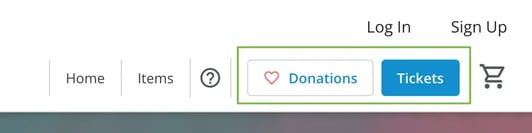
The navigation bar helps donors move between different sections of your fundraiser. It can include page links (like "Home," "Raffles," "Silent Auction," and "Items") and Call-to-Action (CTA) buttons (like "Donations" and "Tickets") that are automatically generated based on what's enabled in your fundraiser.
How to Update Your Navigation Bar
- From your Dashboard, click Edit on your fundraiser to open the Fundraiser Builder.
- In the left-hand sidebar, click Site Header.
- Under Links in Header, update the text labels for any links you'd like to rename.
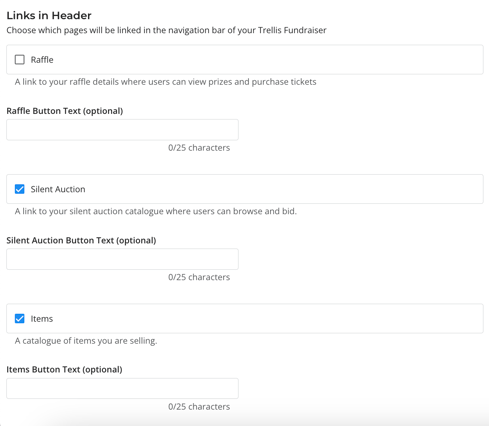
Heads Up! Donation and event ticket links appear in the navigation bar automatically when the drivers are enabled. To remove these buttons from your header, you must toggle off the fundraiser driver.
Managing CTA (Call-to-Action) Buttons
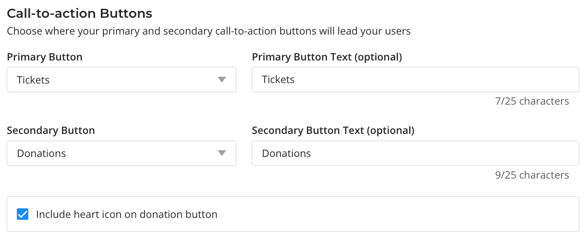
CTA buttons appear on the far right of the navigation bar and are added automatically based on what's enabled in your fundraiser.
- Tickets button appears when Event Ticketing is enabled, a raffle is published, or one or more items for sale are visible
- Donations button appears when Donations are enabled
Available Header Links
Your navigation bar can include links to the following drivers, when enabled:
- Raffle
- Silent Auction
- Items for Sale
- Sponsorships
Please Note: You can customize the text label for each link and choose whether it appears in your header, but you cannot change where the link directs donors.
Previewing Your Changes
- Click Publish to save your changes.
- Click the arrow with an arrow in it to see the updated navigation bar on your live page.
Please Note: The Site Header is not visible inside the Fundraiser Builder. Click View Live to see your navigation bar as donors will see it.
Related Articles
Need Help?
Did this answer your question? If not, feel free to reach out to our Product Engagement Team via the blue chat icon or email support@trellis.org.