![Trellis-MainLogo-AllWhite-01.png]](https://help.trellis.org/hs-fs/hubfs/Trellis-MainLogo-AllWhite-01.png?height=40&name=Trellis-MainLogo-AllWhite-01.png)
Several provinces and territories stopped changing their clocks in 2026. Clocks did not go back on November 1, 2026, and these regions now keep the same time all year. Trellis has been updated for all of them, but some times you entered before the update may need a quick check.
Which Regions Changed
These regions now stay on the same time all year:
- British Columbia: UTC−7 (Pacific Time)
- Alberta: UTC−6 (Mountain Time)
- Northwest Territories: UTC−6 (Mountain Time)
- Manitoba: UTC−5 (Central Time)
- Northwestern Ontario areas that follow Manitoba time, such as Kenora: UTC−5 (Central Time)
Please note: Trellis has been updated for all these regions.
How to Choose Your Time Zone
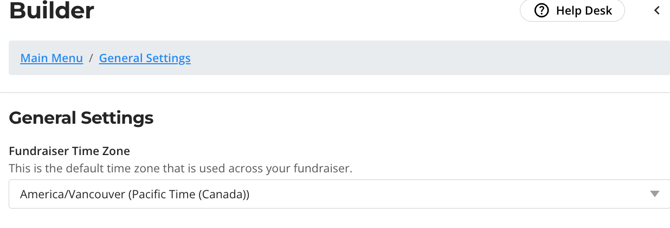
When you set dates for a fundraiser, event, auction or raffle, choose the time zone for your region. You can set this by going to your Builder > General Settings > Fundraiser Time Zone.
- Pacific Time (PT): British Columbia
- Mountain Time (MT): Alberta and the Northwest Territories
- Central Time (CT): Manitoba and northwestern Ontario
The time zone list shows these names all year, so you'll no longer see separate "standard" and "daylight" choices.
Please Note: The short label shown next to a time on your pages and emails, such as PDT, MST or CST, can differ depending on the device or email app. The clock time is what counts. If the clock time is right, your event is set up correctly.
How to Check and Fix Times Set Before the Update
If your fundraiser has dates on or after November 1, 2026, check them if you set them before these dates:
- August 12, 2026: British Columbia and Alberta
- November 2, 2026: Manitoba, the Northwest Territories and northwestern Ontario
A time entered before then can show 1 hour off from what you intended.
- Open your fundraiser in the builder.
- Review your event start and end times, ticket sales dates, auction open and close times, and raffle draw times.
- If a time is off by an hour, enter the correct time and click Save.
- Click Publish Changes in the top-right corner.
Heads Up! Raffle draw times often have to match your licence, and auction close times decide when bidding ends. Check these first.
Frequently Asked Questions
Why does my page show PDT or MST instead of PT or MT?
The short time zone label depends on the device or email app showing it. As long as the clock time is correct, your fundraiser is set up correctly.
Do I need to change times I set after the update?
No. Times entered after August 12, 2026 (British Columbia and Alberta) or November 2, 2026 (Manitoba, the Northwest Territories and northwestern Ontario) already use the new year-round time.
What if a time still looks wrong after I fix it?
Contact our Product Engagment team and include the link to your fundraiser so we can take a look.