![Trellis-MainLogo-AllWhite-01.png]](https://help.trellis.org/hs-fs/hubfs/Trellis-MainLogo-AllWhite-01.png?height=40&name=Trellis-MainLogo-AllWhite-01.png)
What Is the Auction Item Donation Form?
When enabled, the form gives donors a simple way to contribute auction items directly to your event. Submitted items appear in your Auction Builder as drafts, so your team stays in control of what gets published.
How to Enable and Share the Form
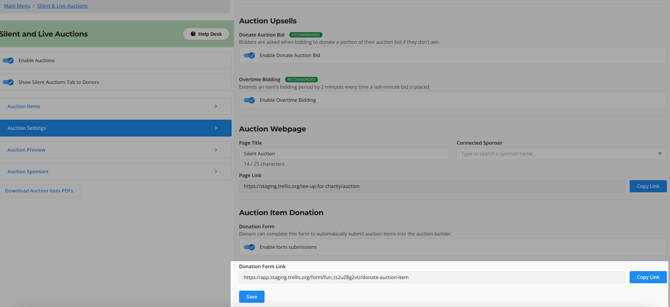
- Navigate to Silent & Live Auctions in your sidebar.
- Toggle on Enable Auctions.
- Under Auction Settings navigate to Auction Item Donation.
- Toggle on Enable form submissions.
- Click Publish Changes.
- Copy the form link and share it with donors via email, social media, or your fundraiser page.
What Donors Can Submit
Donors will be prompted to fill out the following fields:
Contact Details
- Donor Name (required)
- Donor Email Address (required)
- Donor Phone Number (required)
Sponsor Information (optional)
- Sponsor Name
- Sponsor Website
- Sponsor Description
- Sponsor Logo (1 image or document max)
Donors can only submit items for one sponsor per form. If they have items from different sponsors, they will need to submit a separate form.
Auction Item Details
- Item Name (required)
- Quantity (required)
- Monetary Value (required)
- Item Description (required)
- Item Images (up to 10)
- Item Document (1 document max)
Donors can submit multiple items in a single form submission by clicking Add a New Item.
What Happens After Submission
Once a donor submits an item:
- Organization Managers and Organization Contributors receive an email notification.
- The item appears in your Auction Builder as a draft, labeled as a donated item.
- Donated items are marked as invalid by default until your team completes the listing (for example, adding a bid increment or listing number).
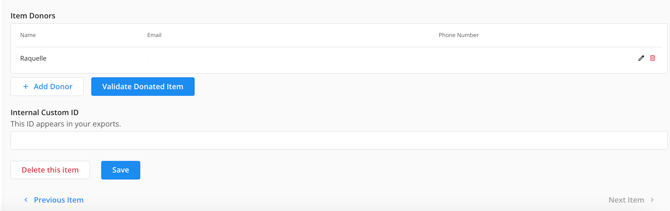
- Donor contact details are saved under Item Donors within the auction item, visible to your team only.
- If sponsor fields were filled out, a sponsor record is automatically created and linked to the item.
- Once all required fields are complete, click Validate Donated Item to finalize it.
Please Note: Donors cannot link their submission to an existing item or sponsor already in your Builder.
Frequently Asked Questions
Can I customize the donation form fields?
Not at this time. The form fields are fixed and cannot be modified.
Is there a submission deadline I can set on the form?
There is no built-in deadline setting. You can use the Messaging Tool to send donors a cutoff reminder.
Related Articles
Need Help?
Did this answer your question? If not, feel free to reach out to our Product Engagement Team via the blue chat icon or email support@trellis.org.