![Trellis-MainLogo-AllWhite-01.png]](https://help.trellis.org/hs-fs/hubfs/Trellis-MainLogo-AllWhite-01.png?height=40&name=Trellis-MainLogo-AllWhite-01.png)
How to Assign Tickets to Your Guests
If you've purchased tickets for an event, those tickets are assigned to you by default. You can assign each ticket to a guest by entering their name and contact info, right after checkout or anytime later from your account. Once a ticket is assigned, your guest receives a notification and a copy of their ticket.
Right After Checkout
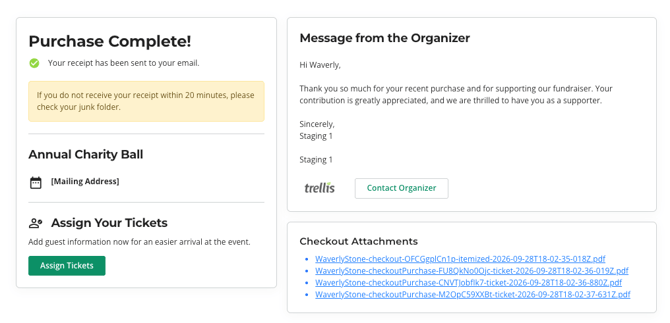
- Once your purchase is complete, you'll land on the Purchase Complete! confirmation page.
- Under Assign Your Tickets, click Assign Tickets.
- This opens the My Tickets page in your account, on the Purchased Tickets tab.
- For each ticket, click the pencil icon and enter your guest's Name and Email, along with any other required fields (for example, a meal choice).
- Click Save.
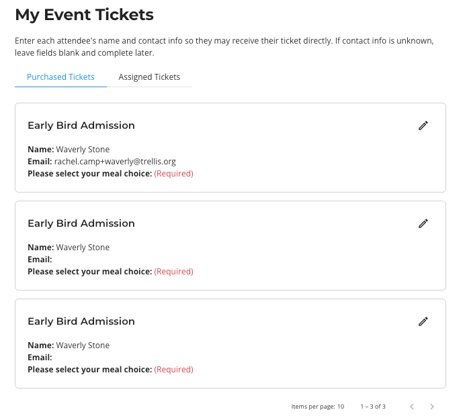
Heads Up! When a ticket is assigned to your guest, they will receive an automatic email, notifying them of the assignment. When they log into their donor account, they will see their ticket under "Assigned Tickets". You as the purchaser will only see your purchased tickets under "Purchased Tickets".
From Your Account Later
- Log in to your account on the fundraiser page using one of these options:
- Option A: In your purchase confirmation email, click My Account. If the link is still active, you'll be logged in automatically.
- Option B: From the fundraiser page, click Log In in the top-right corner and enter your email to receive a login link.
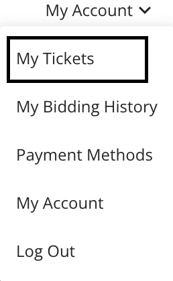
- From the fundraiser page, click My Account in the top-right corner to open the menu.
- Select My Tickets from the menu.
- On the My Tickets page, locate the ticket you want to assign under Purchased Tickets.
- Click the pencil icon to edit the ticket and enter your guest's name and email address.
- Fill in any additional questions (for example, Allergies). Your guest can update their own responses later.
- Click Save to confirm.
Please Note: When a ticket is assigned, an email is sent to your guest's address notifying them of the assignment. This email includes a login link so they can review their ticket in their own account. When they log into their donor account, they will see their ticket under "Assigned Tickets".
Guests cannot change the email address on their ticket. Email addresses are used to uniquely assign tickets to a guest, and guests cannot reassign tickets. Only the ticket purchaser can reassign tickets.
Please Note: Always enter your guest's own information in the attendee fields. Never use another attendee's details, your own, or dummy information, even as a placeholder. If you're unsure of an attendee's details, leave the field blank rather than guessing.
Frequently Asked Questions
What's the difference between "Purchased Tickets" and "Assigned Tickets"?
Purchased Tickets are all tickets you've bought, regardless of who they're assigned to. Assigned Tickets are tickets that someone else purchased and assigned to you.
What if I don't know my guest's email address?
Leave the email field blank rather than entering your own. You can come back and update it once you have their information.
Can my guest change the email address on their ticket?
No. Email addresses are used to uniquely identify each ticket holder, so only the original purchaser can reassign a ticket to a different email.
Can my guest update their contact information after they've been assigned a ticket?
Yes, your guest can update their contact information, such as their phone number and mailing address, when logged into their account. To update their contact information, they will click My Account in the top-right corner and then My Account. Please note, they cannot edit their email address.
Related Articles
How to View Tickets That You've Been Assigned
If you need assistance with assigning event tickets to your guests, please reach out to the event organizer.