![Trellis-MainLogo-AllWhite-01.png]](https://help.trellis.org/hs-fs/hubfs/Trellis-MainLogo-AllWhite-01.png?height=40&name=Trellis-MainLogo-AllWhite-01.png)
Browsing Items
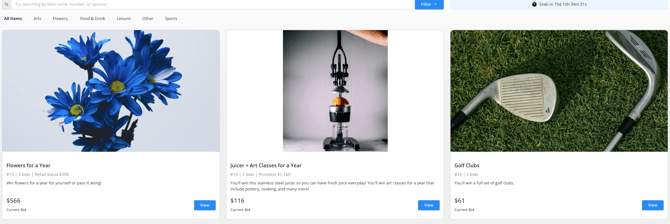
You don't need an account to browse — just open the fundraiser page and click the Silent Auction tab in the page header to see all available items.
From there, you can:
- Search for a specific item by name
- Filter by Category or Price to narrow down what you're looking at
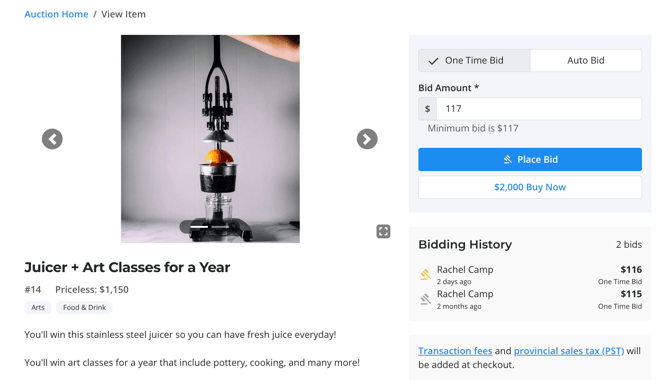
- Click the blue View button on any item to open its full details, including the item description, estimated value, and current bid history
Placing Your First Bid
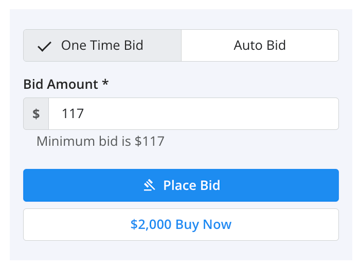
- On any item, enter your bid amount in the bid amount field and click Place Bid.
- If you're not already logged in, you'll be prompted to log in or create an account.
- Once logged in, you'll be asked to save a credit card if you don't have one on file yet.
- Next you will need to confirm your bid.
- You may be asked if you'd like to help cover processing fees in the event that you win.
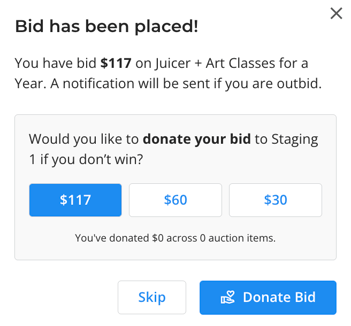
- If the organizer has enabled Donate Auction Bid, you'll be asked whether you'd like to donate some or all of your bid amount if you don't end up winning the item.
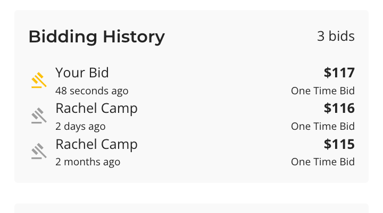
- Once your bid is submitted, it will appear in the Bidding History on the item page.
Please Note: Saving your card does not charge you anything. Your card is only charged if you win an item, or if you choose to donate your bid.
Bid Types and Buy Now
When placing a bid, you have a few options depending on how you'd like to participate:
- One-Time Bid: Places a single bid at the exact amount you enter. If someone outbids you, you'll need to come back and bid again manually.
- Auto Bid: Set a maximum amount you're willing to pay, and Trellis will automatically bid in increments on your behalf to keep you in the lead — up to your limit. This is a good option if you don't want to keep checking back.
- Buy Now: If the organizer has set a Buy Now price, you can skip the bidding process entirely and purchase the item outright at that price.
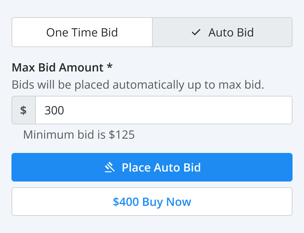
Pro Tip: Auto Bid is a great way to stay competitive without having to monitor the auction constantly. You'll only go up to the maximum you set.
"My Bidding History" and Bid Settings
After placing a bid, you can monitor all of your activity from your account. Click your profile and go to My Bidding History to see every item you've bid on and its current status.
Bid statuses are colour-coded for easy reference:
- Green ("Highest"): You're currently the highest bidder on this item.
- Red ("Outbid"): Someone has placed a higher bid. You can return to the item to bid again.
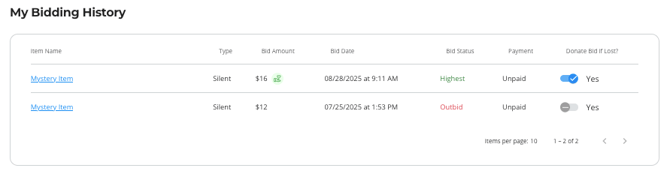
From My Bidding History, you can also choose to donate your bid on any item you didn't win, if that option is available.
Bidding Anonymously: You can choose to bid anonymously and have a randomly generated name display on the auction item. To bid anonymously:
- Click "My Account" in the top right.
- Select "My Account" from the drop down menu.
- Toggle on "Bid Anonymously".

Frequently Asked Questions
Do I need an account to browse the auction?
No — you can browse all items and view details without logging in. You'll only need to create an account when you're ready to place a bid.
When will my card be charged?
Your card is not charged when you save it. You'll only be charged if you win an item at the close of the auction, or if you choose to donate your bid.
What happens if I get outbid?
You'll see your bid status turn red in My Bidding History. You can return to the item at any time and place a new, higher bid. If you set up an Auto Bid, the system will continue bidding on your behalf up to your set maximum before showing as outbid. You will also receive an email and SMS letting you know you have been outbid. Follow the link in the email or SMS to be logged back in.
Can I buy an item without bidding?
Yes, if the organizer has set a Buy Now price for an item, you can purchase it outright at that price without going through the bidding process.