![Trellis-MainLogo-AllWhite-01.png]](https://help.trellis.org/hs-fs/hubfs/Trellis-MainLogo-AllWhite-01.png?height=40&name=Trellis-MainLogo-AllWhite-01.png)
How to Set Your Event Logistics
- Navigate to Fundraising Drivers > Event Tickets in the sidebar.
- Click Edit Event Settings.
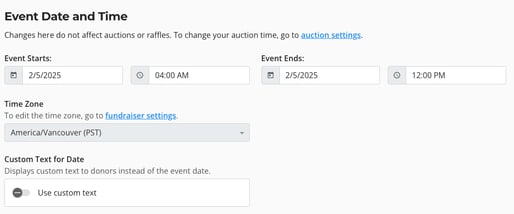
- Under Date & Time, set the Start and End times.
- Under Location, enter the address, or select To be Determined from the dropdown if the venue isn't finalized yet.
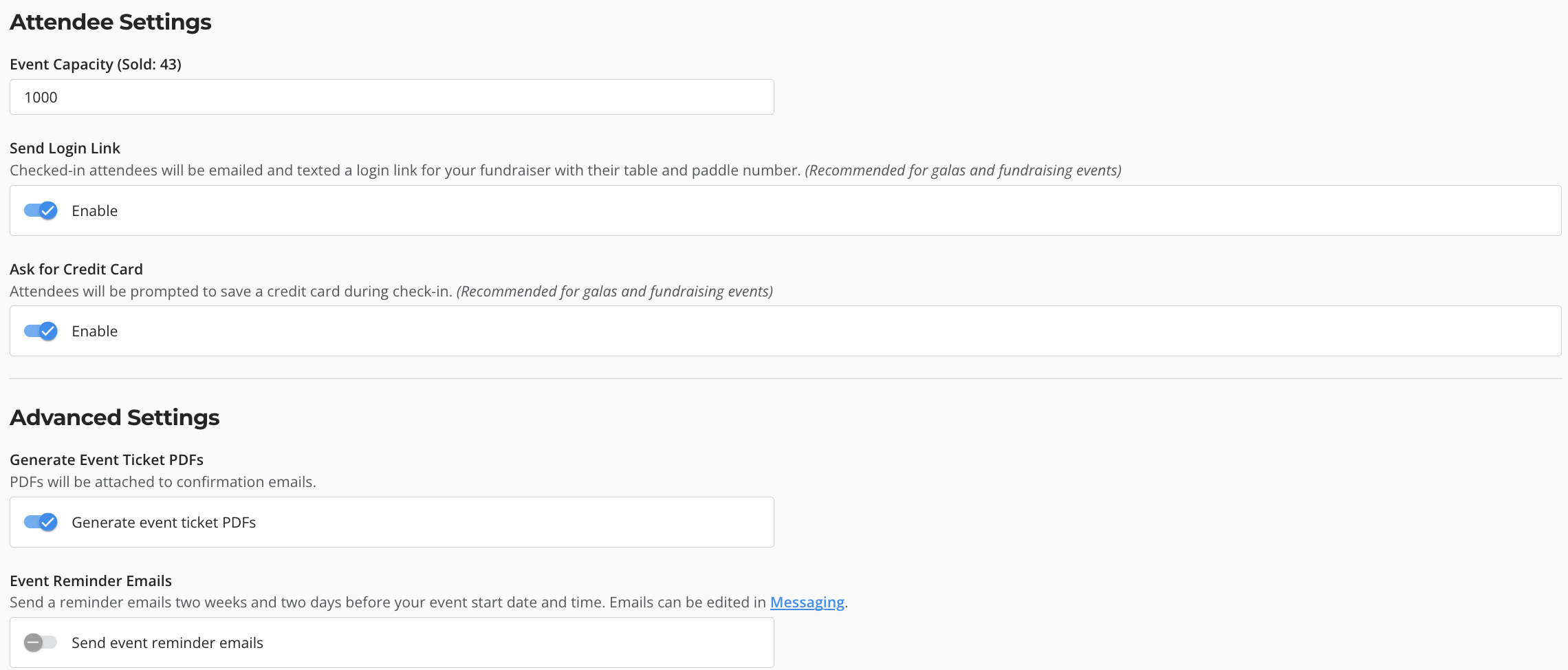
- Set Event Capacity to limit total attendees. Sales automatically stop once this number is reached.
- Configure your Attendee & Advanced Settings:
- Send Login Link — emails and texts checked-in attendees a login link with their table and paddle number (recommended for galas and fundraising events)
- Ask for Credit Card — prompts attendees to save a card during check-in (recommended for galas and fundraising events)
- Generate Event Ticket PDFs — automatically attaches ticket PDFs to confirmation emails
- Event Reminder Emails — automatically sends reminders two weeks and two days before the event
- Click Save, then Publish Changes in the top-right corner.
Pro Tip: Use Custom Text for Date to show donors something other than the standard date format (e.g., "Doors Open at 6:00 PM"). You still need to set a functional Start/End date for the system to work correctly.
Heads Up! Changing the date here does not change the dates for your Auction or Raffle. Those need to be updated separately.