![Trellis-MainLogo-AllWhite-01.png]](https://help.trellis.org/hs-fs/hubfs/Trellis-MainLogo-AllWhite-01.png?height=40&name=Trellis-MainLogo-AllWhite-01.png)
How to Create an Auction Item
- From the Builder, click Silent & Live Auctions then Auction Items.
- Click Add Item in the top-right corner.

- Complete all required fields on the auction item. Hit Save and then Publish Changes:
-
- Offering Type — Select Silent or Live. Live auction items only appear in the Live Auction Preview section, which can be added to your home page.
- Item Visibility — Choose if your auction item is visible to donors or hidden.
- Listing Name — The display name of your auction item.
- Listing ID — A unique identifier for the item. Can be any combination of numbers, letters, and characters.
- Bid Details — Set the starting bid and bid increment.
- Monetary Value and Title — Enter the label that appears before the value, followed by the dollar amount (e.g.,
Valued At: $500). - Item Description — A description of the item. This description is also used in auction print-outs.
- Images — Upload one or more images. Only the first image appears in the item preview and on auction print-outs.
- Tags/Categories — Donors can use these to search and filter items. Type a tag and press Enter to create and assign it.
- Buy Now Purchase Price — Sets a fixed price for bidders to purchase the item outright. Leave blank if this item is not eligible for Buy Now.
- Sponsors — Connect an existing sponsor to the item. Sponsors must be set up first under Auction Sponsors in the left menu.
- Email Attachments — Attach e-gift cards or vouchers to be sent automatically to the winning bidder upon purchase.
- Pickup Instructions — Any pickup details to include in the winner's confirmation email.
- Additional Fees — Add a fixed or percentage-based fee to cover shipping or taxes. A note will be visible to donors when placing a bid.
- Tax Receipts — Choose whether a tax receipt is sent automatically when the winning bid reaches 125% of the item value.
Please Note: Tax receipting must be enabled on your fundraiser for the automatic tax receipt feature to work.
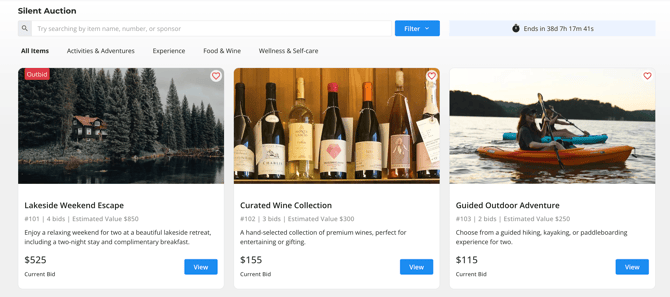
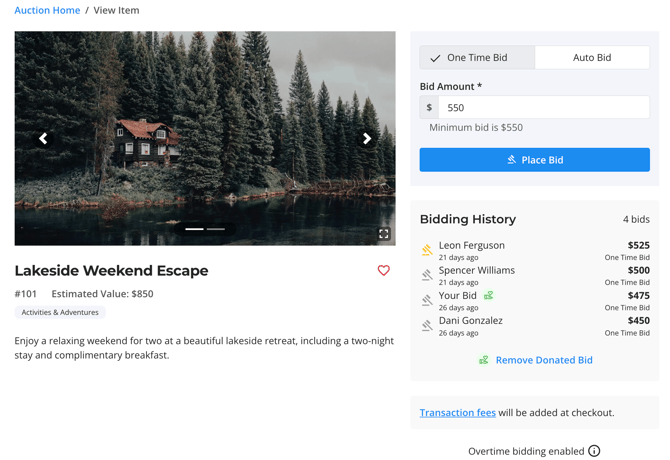
Example of a Silent Auction Open for Bidding
Silent Auction Best Practices:
The following values are best practice for setting silent auction values.
- Starting Bid: 40% of item value
- Bid Increment: 10% of item value
- Buy Now Price: 150% of item value
- Overall Goal: Raise an additional 20% on the item value
Frequently Asked Questions
What's the difference between silent and live auction items?
Silent auction items are available for open bidding on your fundraiser page. Live auction items are only surfaced in the Live Auction Preview section, which is designed for in-person or hosted live auction events.
Can I change an auction item from Silent to Live if the item has bids?
Yes, you can change the Offering Type from Silent to Live while your auction is open if the item has bids. The bids will remain when you switch the Offering Type and will be reflected in your Live Auction Preview section if not deleted manually.
How can I offer multiple inventories of a silent auction item?
If you have multiple quantities of an auction item, you would need to create a separate item for each quantity.
If you are simply selling the item, we recommend using the Items for Sale feature instead.
Can I use the same tags across multiple items?
Yes, tags are shared across all auction items. If you want to remove a tag entirely, you must remove it from every item it's assigned to.
How can I delete a tag/category?
To delete a tag, it must first be removed from all auction items -- it will then delete automatically.
Can I edit a tag/category?
No, it is not possible to edit existing tags and categories. You will want to remove the old tag from all auction items and add the new one.
Can I reorder auction items by tag/cateogry?
No, it is not possible to reorder auction items by tags or categories at this time.
If I duplicate a fundraiser, do auction items get duplicated?
No, auction items will not be duplicated. If you have similar items from a previous fundraiser, you can request a silent auction item bulk upload to quickly add those items. Note - we only allow one auction item bulk upload request per fundraiser.
Do you have a blind bidding function, where all bidders just place their max bid anonymously?
No, not at this time.
Can different auction items close at different times?
No, not at this time.
We have high value items that we don't want charged to donors' credit cards. Is it possible to disable auction auto-pay on certain items?
No, not at this time. However, you can use our VIP donor feature to disable auction auto-pay for specific donors, if you know who is likely to make the purchase. VIP Donors is currently in Beta, please reach out to support@trellis.org for access.
Related Articles
- How to Set Up and Launch Your Silent Auction
- How to Manage my Bidders During and After the Auction
- How to Generate and Download Your Auction Printouts
- How to Set Up and Display Your Live Auction
Need Help?
Did this answer your question? If not, please reach out to our Product Engagement Team via the blue chat icon or email support@trellis.org.