![Trellis-MainLogo-AllWhite-01.png]](https://help.trellis.org/hs-fs/hubfs/Trellis-MainLogo-AllWhite-01.png?height=40&name=Trellis-MainLogo-AllWhite-01.png)
A full refund returns the whole amount of a checkout to the original payment method, whether it was a donation, event tickets, or other items. Refunding is also the only way to remove an attendee from your event, since attendees can't be deleted.
How to Issue a Full Refund
- From the Dashboard, go to Results and click All Transactions.
- Search for the transaction using the purchaser's name, email, or checkout ID.
- Click the 3-dots menu on the right of the transaction and select Issue Refund.
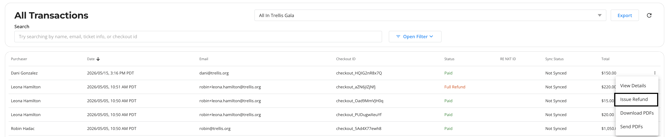
- From the Refund a Checkout page, review the checkout details to see the amount eligible for refund.
- Under Refund Type, select Full Refund.
- Choose whether to refund the tax receipted amount.
- Confirm that the Total To Refund amount is correct.
- Select a reason for the refund: Request By Customer, Duplicate, or Fraudulent.
- Choose whether to send a refund receipt and confirmation email to the purchaser.
- Click Refund.
Please Note: Attendees cannot be deleted and tickets cannot be converted. If you need to remove an attendee, you must issue a refund. Once refunded, the attendee will no longer appear in your Check-In tool.
The tax receiptable portion can apply to donations, event tickets, or items that include a tax-receipted amount. If you issue a refund for any tax-receipted transaction, the original tax receipt will be voided.
For Canadian organizations, the CRA requires reporting of voided tax receipts, which remains the organization's responsibility, as Trellis does not handle this reporting.
Important Refund Info:
-
Once issued, a refund cannot be cancelled. Double-check the Total To Refund amount before clicking Refund.
- Some refunds — those issued shortly after the original charge—appear in the form of a reversal instead of a refund. In the case of a reversal, the original charge drops off the customer’s statement, and a separate credit is not issued.
- For Raiser's Edge integration customers: the integration does not support refunds. Your team will need to manually adjust the gift in Raiser's Edge.
Frequently Asked Questions
How do I remove an attendee from my event?
Attendees cannot be deleted and tickets cannot be converted. To remove an attendee, issue a refund for their ticket. Once refunded, the attendee will no longer appear in your Check-In tool.
How are transaction fees handled during refunds?
Transaction fees are non-refundable in Stripe. There are no fees to refund a charge, but the fees from the original charge are not returned. If the original charge underwent currency conversion, the refunded amount is converted back using the same process.
If the donor covered the fees, the donor will be refunded the entire amount (including fees) and your organization will have the transaction fees deducted from your payout.
If your organization covered the fees, the purchased amount will be refunded to the donor and the fee will remain at the organization's expense.
If using our 0% Fees feature, the donor can be refunded the amount they paid, and Trellis covers the fees.
Can you refund just the 0% Fees amount back to the purchaser?
Yes, if the purchaser would like a refund just for the amount they paid for 0% Fees, you can issue an itemized refund. Do not select any items to refund, instead scroll to the bottom of the page and toggle on Refund Fees and Platform Support to Purchaser. Once refunded, the purchaser will receive an email confirming the refund along with a refund receipt.
Note: The total refund amount will not be displayed, as the amount comes directly from Trellis. The platform support portion will be refunded to the purchaser’s original payment method. Your organization will not be charged processing fees if a refund is issued.
Where can refunds be sent back to?
Refunds can be sent back only to the original payment method used in a charge. It’s not possible to send a refund to a different destination (e.g., another card or bank account).
Refunds to expired or cancelled cards are handled by the customer’s card issuer and, in most cases, credited to the customer’s replacement card. If no replacement exists, the card issuer usually delivers the refund to the customer using an alternate method (e.g., check or bank account deposit).
Will the purchaser be notified of the refund?
You can choose whether the purchaser will be notified when issuing the refund by selecting Send refund receipt and email to purchaser or leave it unchecked to not send the notification.