![Trellis-MainLogo-AllWhite-01.png]](https://help.trellis.org/hs-fs/hubfs/Trellis-MainLogo-AllWhite-01.png?height=40&name=Trellis-MainLogo-AllWhite-01.png)
Event Ticket Orders let you add attendees to your event before payment is collected. This is useful for sponsors who are mailing a cheque, major donors buying a table, or any guest who's confirmed attendance but hasn't paid yet. Orders reserve inventory and create attendees right away, so you can track your guest list and collect payment later.
How to Create an Event Ticket Order
- Open the Sales Entry System (SES) and add the event tickets you need to the cart.
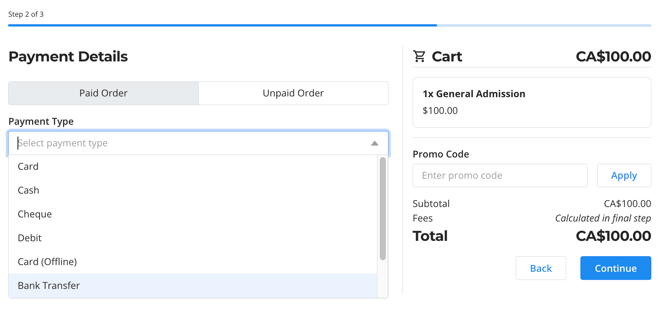
- Proceed to the Payment Method step.
- Select Unpaid to create an order without collecting payment now.
- If you want the revenue to count toward your event's fundraising thermometer, choose Add Pledge.
- Complete the order. Attendees are created in the Check-In Tool and the tickets are removed from inventory.
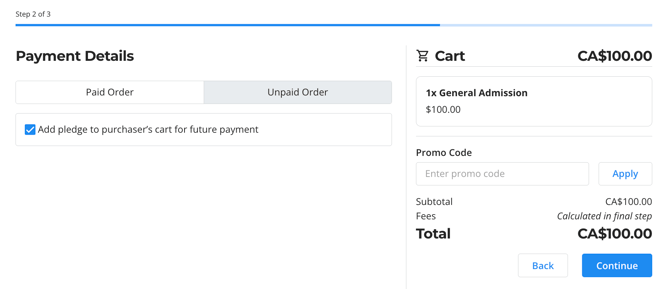
Please Note: Unpaid orders do not generate receipts or event tickets. Those are only created once the order is paid.
How to Send an Unpaid Order Confirmation Email
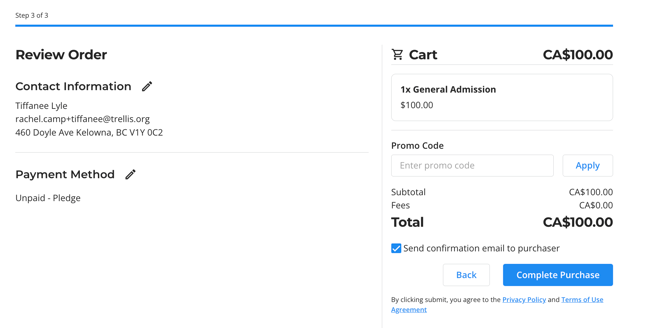
- On the final step of the SES, toggle on Send Confirmation Email.
- Review the email preview, then complete the order.
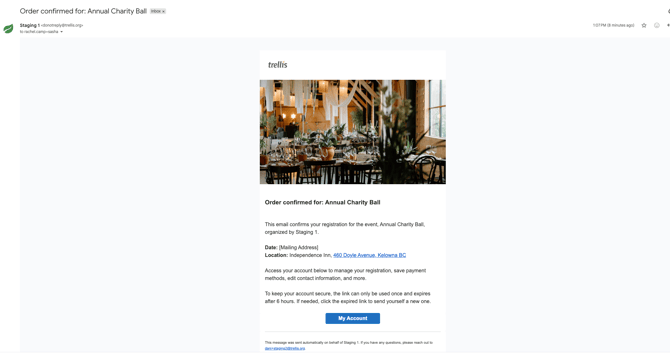
This email lets the purchaser know an order was created on their behalf. Since the order is unpaid, no receipt is included.
Please Note:
Attendees cannot remove an unpaid event ticket order from their own cart. Your team must delete the order on the backend.
If you have configured a sales end date for your event tickets, all unpaid event tickets will be removed from donors carts once this date is reached. This includes pledged unpaid orders.
How to Manage Orders in the Dashboard
- Go to Results in your dashboard.
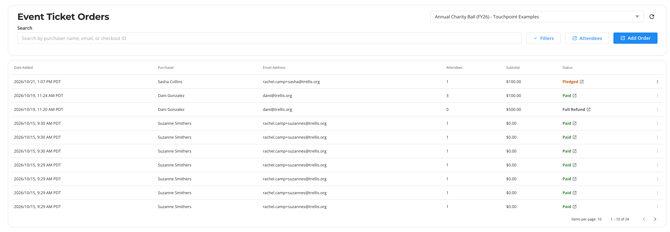
- Open the Event Ticket Orders table to see all orders and their payment status.
- To edit an unpaid order, open it and add or remove tickets as needed.
- To cancel an unpaid order, click Delete. This also removes the associated attendees and any pledges.
Heads Up!
-
Attendees on an order count toward your event capacity as soon as the order is created, even if it's unpaid.
-
Paid orders can't be deleted directly. To remove a paid ticket, process a refund instead.
How to Collect Payment for an Unpaid Order
- From the Event Ticket Orders table, open the order you want to collect payment for.
- Choose a payment method:
- Mark as Paid to record an offline payment (like a cheque or cash).
- Charge Saved Card if the purchaser has a card on file.
- Charge New Card to open the card entry dialog and complete the purchase.
- Make Pledge for Order to add the order to the purchaser's cart so they can pay it themselves.
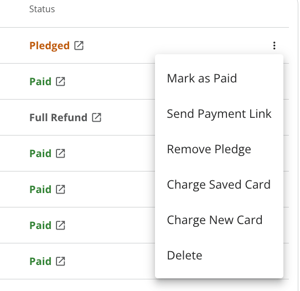
- Confirm the payment. Once paid, receipts and event tickets are generated automatically.
How to Send a Payment Reminder
- Open the unpaid, pledged order from the Event Ticket Orders table.
- Click Send Reminder. This emails the purchaser a magic link so they can sign in and complete payment.
- To reach multiple purchasers at once, create a Message Campaign and select one of these recipient groups:
- Unpaid Event Ticket Orders: all purchasers with unpaid orders, pledged or not.
- Unpaid Event Ticket Pledges: purchasers with unpaid, pledged orders only.
Frequently Asked Questions
Can donors create their own unpaid orders?
No. Donors can only complete paid purchases at checkout. Unpaid orders can only be created by an org user or volunteer through the SES.
What happens if an attendee can no longer come?
If the order is unpaid, delete the ticket from the order to remove the attendee. If none of the attendees can make it, delete the entire order.
If the order is already paid, you'll need to process a refund instead.
Can I switch someone's ticket type after the order is created?
Yes, but this deletes and re-adds the ticket, which also removes and re-creates the attendee.
Can an order be partially paid or paid in installments?
Not currently. Orders are either fully paid or fully unpaid.
Do unpaid orders sync to RE NXT?
No. Since unpaid orders can have tickets added and removed, which changes the gift/pledge amount, orders only sync to RE NXT once a checkout or transaction is completed. This includes event participants.
Does this include the new sponsorships feature?
Not currently, however our team will be working on incorporating unpaid sponsorships in the next couple of months.
Can we see if an attendee is unpaid in the Check-In Tool?
No. The Check-In Tool will show all created attendees. To manage payment, use the Event Ticket Orders table in the dashboard.
What happens if a purchaser has an unpaid pledge for an order and we add more tickets to their order?
The pledge amount will automatically update with the new tickets that are added.
Can we generate and send an invoice to the purchaser for an unpaid order?
We do not have a dedicated invoicing function, however you can send payment reminders with login links. From there purchasers can complete their purchase (via credit card) from their cart.
If there is a sales end date set for an event ticket and a donor has an unpaid order past the sales end date, what happens?
The sales end date feature is designed when you need to set a hard stop across the platform for an event ticket. That means that when this date is reached, all event tickets will be removed from the purchaser's cart, even if they are pledged unpaid orders.
If you need to sell tickets after the event, we recommend making the tickets hidden at a certain date instead of setting a sales end date.