![Trellis-MainLogo-AllWhite-01.png]](https://help.trellis.org/hs-fs/hubfs/Trellis-MainLogo-AllWhite-01.png?height=40&name=Trellis-MainLogo-AllWhite-01.png)
The Sponsorships driver gives you a dedicated way to build sponsor packages, include event tickets, and track that revenue separately from ticket and item sales.
Please Note: This feature is only available to Pro Plus and Enterprise organizations. For other service level plans, please refer to the steps in this article.
How to Enable Sponsorships
- In your fundraiser setup wizard, or from your fundraiser builder, enable the Sponsorships driver.
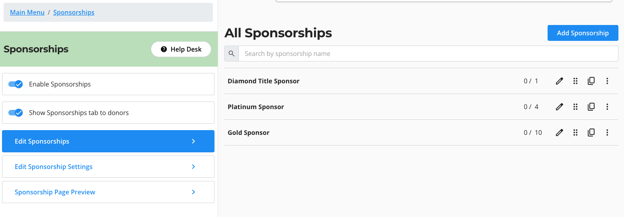
- Once enabled, a new Sponsorships section appears in your builder, similar to how the Event Tickets or Items driver works.
How to Create a Sponsorship Package
- From the Sponsorships section, click Add Sponsorship.
- Enter your sponsorship details, including:
- Sponsorship Title
- Quantity Available
- Price
- Included Event Tickets (Max 50)
- Tax Receipt Amount
- Advantage Description (what the sponsor receives)
- Sponsorship Description (rich text)
- Images (you can add more than one)
- Set Visibility to Visible or Hidden, and set your Sales Availability window.
- Add any Custom Fields, Promo Codes, or Email Attachments if needed.
- Click Save.
Including Event Tickets in a Sponsorship
- In the sponsorship editor, use the Included Tickets dropdown to choose which ticket type is included.
- Set the Number of Tickets Included with the sponsorship.
- When a sponsor purchases the package, Trellis automatically creates attendees for each included ticket.
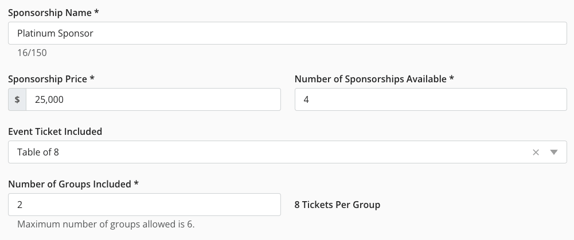
Heads Up! Included tickets count against your event capacity and ticket inventory. If there isn't enough inventory left, the sponsorship will show as sold out.
How to Publish Your Sponsorships Page
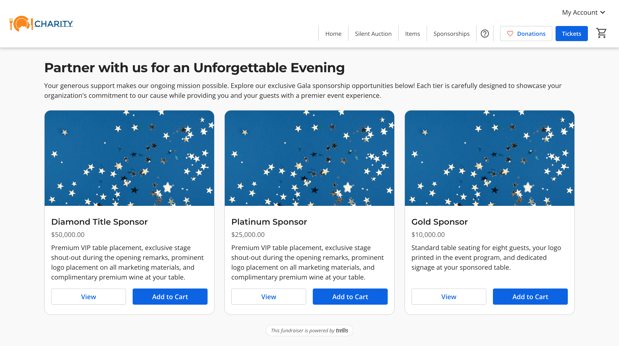
- Trellis automatically creates a Sponsorships page to showcase all your available packages.
- From Sponsorships Settings, customize your page title and description.
- From Fundraiser Settings > Site Header, update the label for your Sponsorships link in your site navigation, and choose whether it appears in your menu.
- Use Preview in the builder to see how your page will look before publishing.
- Optionally, add a Sponsorships section to your homepage to preview your top packages, with a link to view all sponsorships.
- Click Publish Changes when you're ready to go live.
Selling and Tracking Sponsorships
- Sponsorships can be purchased through your standard checkout or the Sales Entry System (SES). They can't be sold through the attendee cart in the Check-In Tool.
- Sponsorship revenue is tracked separately from event ticket revenue in your reporting and thermometers, even when a sponsorship includes tickets.
- Tickets included in a sponsorship will not count towards ticket revenue.
- Sponsorships sync to RE NXT as gifts. Included event tickets sync as event participants, not as separate gifts or participant fees.
Frequently Asked Questions
Can sponsors reserve a sponsorship and pay later?
Not yet. Reserving sponsorships and paying later, along with ACH and invoicing, are planned for a future phase.
Can I include items other than event tickets in a sponsorship?
No, sponsorships currently only support including event tickets.
What happens if I refund a sponsorship?
A full refund returns the full amount and removes all included attendees. A partial refund lets you refund part of the sponsorship amount, and included tickets can be returned to inventory but aren't separately refunded.
Can we include more than 50 tickets in a sponsorship?
No. To ensure performance of the system, the maximum number of tickets allowed in a group or sponsorship is 50. However, for better user experience for your purchasers, we recommend keeping sponsorships to 10-20 tickets max.
How should we sell sponsorships if we don't know if the sponsor is attending the event or not?
The best way would be to set up your sponsorship packages without event tickets, so you are purely selling the sponsorship.
When you know if that sponsor is attending, add complimentary tickets via the Sales Entry System on behalf of that sponsor. They can then go and reassign their tickets from their account.
At this time, it is not possible for sponsors to indicate if they are attending or not at the time of purchase, that controls whether event tickets are included. You can add a custom field that asks if the sponsor intends to attend, and use that for following up closer to the event.
Can I hide a sponsorship behind a passcode?
No - sponsorships are available for purchase from anyone who visits your webpage. If you no longer want sponsorships to be available for purchase, you can:
-
Hide that individual sponsorship
-
Update the inventory so the sponsorship shows as sold out
- Hide the entire sponsorships page
Does the price of the event ticket impact the price of the sponsorship?
The price of the sponsorship will override the price of the ticket, so only the sponsorship price will be charged and recorded as revenue. You will not see any additional event ticket revenue in your reports for event tickets included in a sponsorship.
How do sponsorships sync to RE NXT?
You can configure sponsorship gift sync the way you can set up any other fundraising driver, with Campaign, Fund, Appeal and Package. The price of the sponsorship then syncs to the purchase. If you have the Events module setup in RE NXT, the included attendees will sync as event participants, and the host participant will show the sponsorship event fee.
How should we sell sponsorships if we are on a Starter or Pro plan?
If you are on one of our legacy plans, please continue to sell sponsorships using event tickets.
Did this answer your question?
If not, please reach out to our Product Engagement Team via the blue chat icon or email support@trellis.org.