![Trellis-MainLogo-AllWhite-01.png]](https://help.trellis.org/hs-fs/hubfs/Trellis-MainLogo-AllWhite-01.png?height=40&name=Trellis-MainLogo-AllWhite-01.png)
How to Test a Donation
Sales Entry System (SES) - Recommended
- Open the ESM for your fundraiser and select Sales Entry System (SES).
- Select a donation amount.
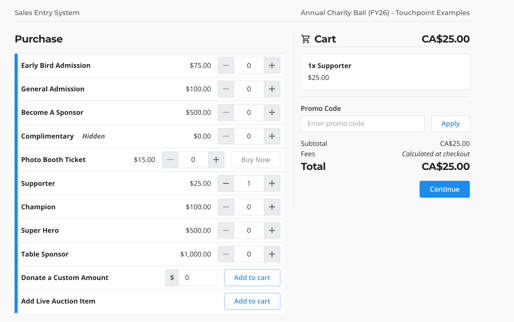
- Enter a donation amount and the donor's information.
- Choose an offline payment type (e.g., Cash or Check).
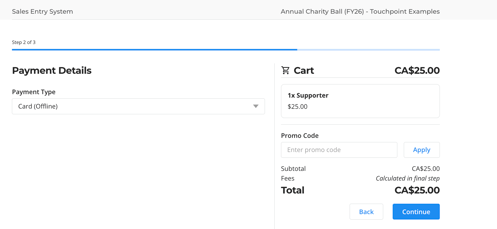
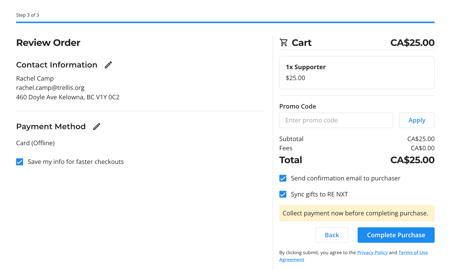
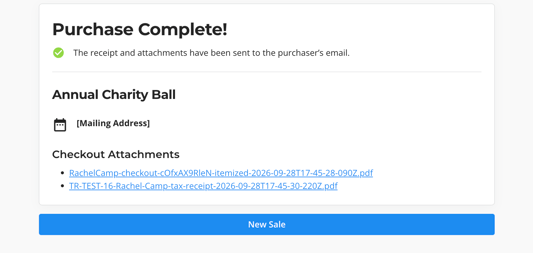
- Complete the transaction.
Heads Up! If you test a donation using a real credit card, you will incur Stripe processing fees. Trellis is not able to refund Stripe fees. To avoid them, we strongly recommend using an offline payment type in the Sales Entry System.
Standard Checkout Flow
-
Navigate to your live fundraiser page.
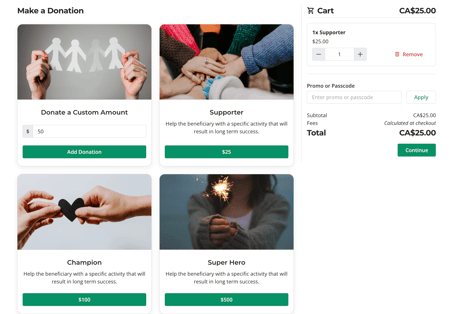
- Click Donations in your header.
- Add a donation option to your cart and click Continue. We recommend using a custom donation, and entering an amount of $5.
- Add in your donor's contact information.
- Enter your credit card details and click Continue.
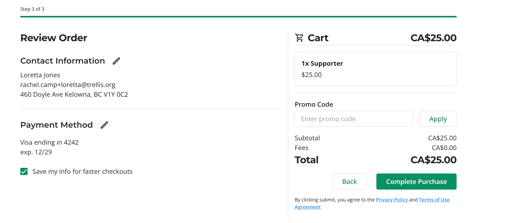
- Review order and then click Complete Purchase.
Heads Up! Testing via the standard checkout with a credit card will incur Stripe processing fees, which are non-refundable.
How to Clean Up Test Donations
Test donations cannot be deleted. To remove them, issue a refund. This will also remove the transaction from your fundraiser's activity roll. See How to Issue a Full Refund for details.