![Trellis-MainLogo-AllWhite-01.png]](https://help.trellis.org/hs-fs/hubfs/Trellis-MainLogo-AllWhite-01.png?height=40&name=Trellis-MainLogo-AllWhite-01.png)
If you have tickets or registration that only certain groups of people should access, say Staff or Volunteer price tickets, you can hide those tickets and use Passcodes so only certain people can see and complete purchases.
How to Set Up Passcodes
Hide a Ticket
- Click the pencil icon to edit the ticket you want to hide.
- Under Advanced > Ticket Visibility, change the setting to Hidden.
- Scroll down to the Passcodes section and click Add a Passcode.

Please Note: Hidden tickets can still be accessed via a passcode or pre-filled link. This is useful when you want to stop general sales but still need to process payments through the Sales Entry System or allow donors who pledged to complete their checkout.
Configure the Passcode
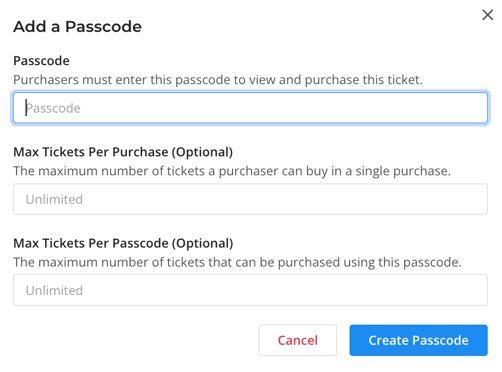
Click + Add Passcode and fill in the following fields:
- Passcode — The code purchasers enter to reveal the hidden ticket. We recommend a code without spaces (e.g.,
VIP2025). - Max Tickets Per Purchase — The number of tickets a purchaser can buy in one transaction.
- Max Tickets Per Passcode — The total number of tickets that can be purchased using that code across all purchasers.
Share and Manage Your Passcode
Once your passcode is saved and your fundraiser is published:
- Click the copy link button to share a pre-filled URL that auto-reveals the hidden ticket.
- View how many tickets have been sold using each passcode directly from the Passcodes section.
- Click the edit icon at any time to update passcode settings.

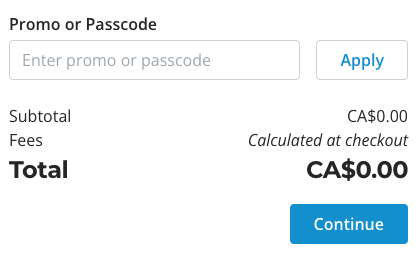
Purchasers can also manually enter a passcode during checkout to unlock the restricted ticket.
Frequently Asked Questions
Can I create a passcode that reveals multiple hidden tickets?
Yes. Use the same passcode text for each of the hidden tickets you want to reveal with that code.
Can I create a passcode that also applies a discount?
Yes. Set up the passcode for the hidden ticket and a promo code for the same ticket, using identical code text so both apply together.
Can a purchaser enter more than one passcode during checkout?
Yes. Multiple passcodes can be entered to reveal different hidden tickets. Note that only one promo code can apply per checkout — if multiple passcodes trigger promo codes, only the most recently entered one will apply.
Can a passcode apply to something other than an event ticket?
Not at this time. Passcodes currently only apply to event tickets.
What happens if my fundraiser only has passcode-protected tickets available?
Donors will see a blank state prompting them to enter a passcode when they reach the ticket selection page. To avoid this, share the pre-filled link generated by the passcode so it auto-applies when donors click through.
Why is my hidden ticket still visible from the select page?
If you have previously entered a passcode to reveal a hidden ticket, your browser will remember the passcode that was entered, so you do not need to enter it again.
If you are testing out how this works, we recommend opening your fundraiser in a private browsing window.
Related Articles
Need Help?
Did this answer your question? If not, please reach out to our Product Engagement Team via the blue chat icon or email support@trellis.org.