![Trellis-MainLogo-AllWhite-01.png]](https://help.trellis.org/hs-fs/hubfs/Trellis-MainLogo-AllWhite-01.png?height=40&name=Trellis-MainLogo-AllWhite-01.png)
Our Sales Entry System allows you to process checkouts on the backend, say for when a donor phones or mails in their purchase.
You can also use the SES to process transactions and checkouts you need in Trellis but were paid using offline payment methods, like a direct bank transfer, cash, check/cheque, or a different credit card processor. For example, this might include running sponsorship purchases through the SES to get their purchase into the system and totals, without charging them on Trellis.
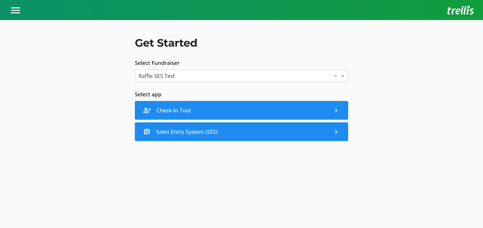
1. Go to the Sales Entry System
- From your dashboard, click the Person icon to access the Event and Sales Manager (ESM)
- Log in to the ESM using the same credentials as the dashboard.
- Select the fundraiser you want to manage from the dropdown.
- Click Sales Entry System(SES).
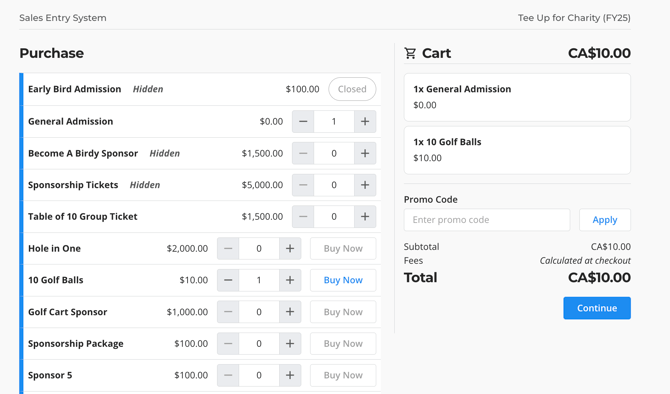
2. Select what you would like to buy for the purchaser
- The SES shows everything available for purchase on your fundraiser, even hidden tickets, items, and sponsorships.
- If Silent and Live Auctions are enabled, this will include a way pay for a Live Auction Item.
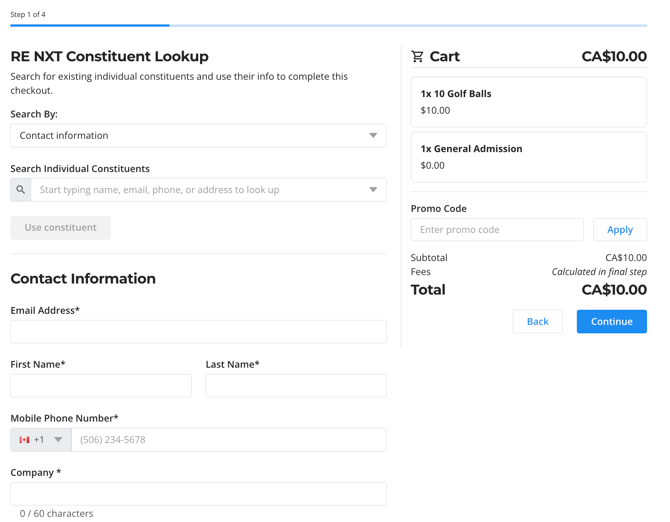
3. Enter the purchaser's information during checkout
- The SES has the same checkout as your Live Fundraising page.
- Complete all required fields for the checkout.
- You can choose whether fees are covered for this checkout.
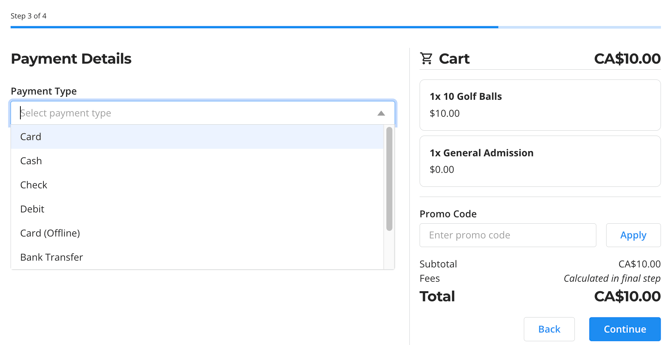
4. Select a payment method
- Online Payment Methods:
- Card: this opens a form for you to enter credit card details and the card will be processed with your fundraiser's payment processor (Stripe or BBMS).
- Offline Payment Methods:
- Cash: this allows you to collect cash for the payment.
- Cheque: this allows you to collect cheque for the payment.
- Card (Offline): This allows you to enter a transaction that was paid for using a different processor. You do not need to enter card details again to use this method, as nothing is being processed on Trellis.
- Other: This allows you to enter a transaction that was paid for using a different method (like a bank transfer).
6. Review and finalize the purchase
- Confirm checkout details are correct.
- Confirm fee coverage is correct.
- Choose whether you want the purchaser to receive their confirmation email and receipt.
- Choose whether the gift should sync to RE NXT.
- Click Complete Purchase to confirm the order.
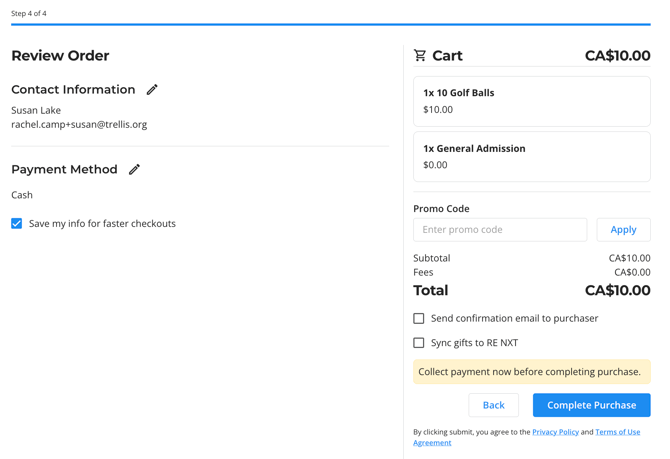
Your manual entry of purchase is now completed! You can hit New Sale to enter another purchase.
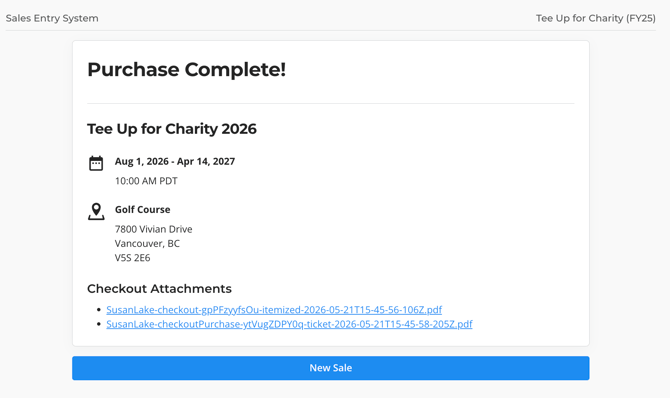
Have your donor check their email for a copy of their receipt and raffle tickets. It might take a few minutes before they receive their email.
Tip: Some emails might end up in spam, have your donor check their spam mail too!
Frequently Asked Questions
Can we edit what fields are required from the purchaser during checkout?
Yes, you can adjust which contact information is asked, optional or required from the Fundraiser Builder > Checkout Settings. Please note this also applies to the standard donor checkout as well.
If the purchaser is set to cover the fees, why does the cover fees checkbox still appear here?
We give you the option to override fee coverage settings via the SES, in case there is a special circumstance where the purchaser should not cover the fees (such as a major donation).
How can I enter a donation if I don't have the donor's email address?
All checkouts on Trellis require an email address to complete the purchase and generate receipts. If you do not have the donor's email address, we recommend using our Pre-Seeded Donation feature instead to enter the donation.
Do not use fake or staff email addresses when entering these gifts, as that can cause issues down the line with how data is saved.
Can we choose whether tax receipts are generated via the SES?
No - the SES functions similarly to the standard donor checkout. If you are entering in a donation that has already been receipted, you will need to temporarily disable tax receipting on your fundraiser, enter the donation, then re-enable tax receipting.
Related Articles
How donor accounts work on Trellis
How to Monitor Your Event Ticket Sales
How to Issue a Full or Partial Refund
Need Help?
If you have questions or need assistance, reach out to the Product Engagement Team via the blue chat icon in Trellis or email support@trellis.org.