![Trellis-MainLogo-AllWhite-01.png]](https://help.trellis.org/hs-fs/hubfs/Trellis-MainLogo-AllWhite-01.png?height=40&name=Trellis-MainLogo-AllWhite-01.png)
How to Access a Checkout
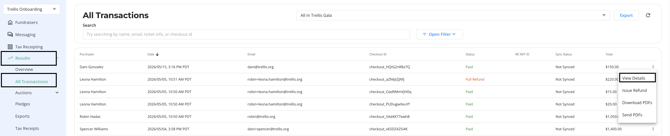
- From your Dashboard, navigate to Results > All Transactions.
- Confirm the correct fundraiser is selected in the top-right dropdown menu.
- Locate the transaction you want to view or edit.
- Click the 3-dots on the right side and click View Details.
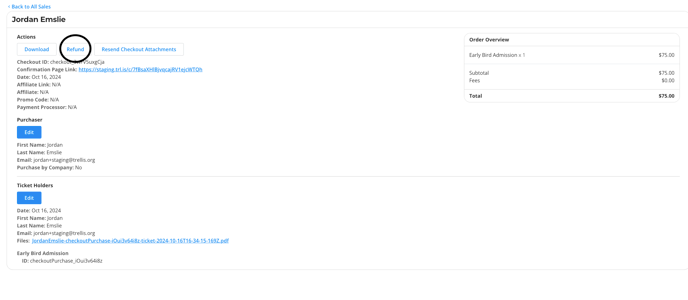
From here you can:
- Resend the checkout confirmation email
- Issue a refund
- Edit the purchaser's information
- Download checkout attachments
Important Notes
- You should only edit checkout details if the purchaser’s information is incorrect or incomplete.
- Do not use this section to edit ticket holder info or reassign tickets. Instead, use the Check-In Tool in the Event and Sales Manager (ESM) to make ticket changes.
Frequently Asked Questions
Can I reassign a ticket to a different person from this screen?
No. Ticket holder changes and reassignments must be made through the Check-In Tool in the Event and Sales Manager (ESM).
Related Articles
Need Help?
If you have questions or need assistance, reach out to our Product Engagement Team via the blue chat icon or email support@trellis.org.