![Trellis-MainLogo-AllWhite-01.png]](https://help.trellis.org/hs-fs/hubfs/Trellis-MainLogo-AllWhite-01.png?height=40&name=Trellis-MainLogo-AllWhite-01.png)
How to Add a User Role
- From your Dashboard side menu, go to Team Roles > Organization Roles.
- Click Add User Role.
- Enter the new user's Email Address, First Name, Last Name, and Phone Number.
- Select the appropriate Role for this user (see role descriptions below).
- Click Save.

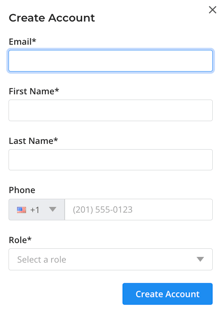
The new user will automatically receive an email containing a one-time login link that logs them into their account once clicked.
User Role Permissions
Organization Manager
Full access to everything within the account, including payments and integrations. Receives email notifications when an auction item is donated.
Organization Contributor
Similar access to an Organization Manager, except cannot view or edit:
- Payments (Stripe Connect, Banking)
- Raiser's Edge integration settings
Fundraiser Manager
Access to edit a specific fundraiser page and view its results only. Does not receive auction item donation notifications. Cannot view or edit:
- Payments (Stripe Connect, Banking, payout reports)
- Tax Receipt Templates
- Organization Profile
- Raiser's Edge settings
How to Change a Team Member's Permissions
Roles cannot be edited directly once a user has been added. To change a team member's role, you'll need to disable their current role and add them again with the new role.
- From Team Roles, locate the team member whose role you want to change.
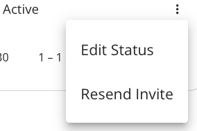
- Click the 3-dot menu on the right-hand side beside their status.
- Select Edit Status, then choose Disabled.
- Click Add User Role and re-enter the user's Email Address, First Name, Last Name, and Phone Number.
- Select the new Role for this user.
- Click Save.
Please Note: This creates a new user role entry rather than editing the old one. The user's previous role will remain in your Team Roles list as Disabled. At this time, you cannot delete a user.
How to Disable a Team Member's Access
- From Team Roles, locate the team member.
- Click the 3-dot menu on the right-hand side beside their status.
- Select Edit Status, then choose Disabled.
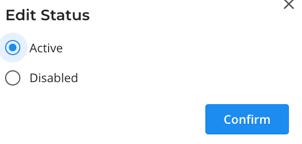
Please Note: Team members cannot be permanently deleted, only disabled at this time.
Heads Up! Avoid having multiple users edit the same fundraiser at the same time. Trellis auto-saves updates and one user's changes may overwrite another's.
Frequently Asked Questions
Can I change a user's role after they've been added?
Not at this time. You must disable the current role and add a new user role with the updated user role.
Can a Fundraiser Manager access multiple fundraisers?
Fundraiser Managers can only access the fundraiser they are assigned to.
Can I resend an invite to a user?
Yes, click the 3 dot-menu beside their name and click Resend Invite.