![Trellis-MainLogo-AllWhite-01.png]](https://help.trellis.org/hs-fs/hubfs/Trellis-MainLogo-AllWhite-01.png?height=40&name=Trellis-MainLogo-AllWhite-01.png)
Browsing the Auction
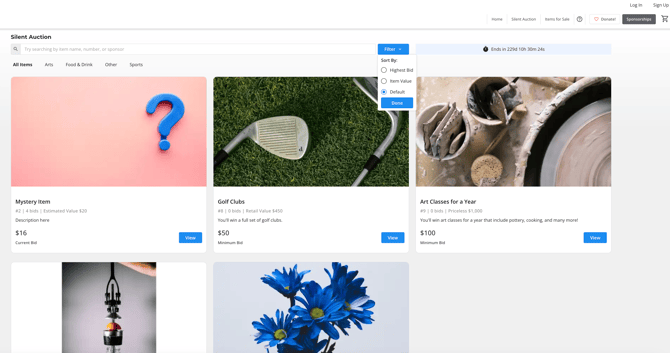
Donors can view your silent auction items by clicking the Silent Auction tab in your page header.
-
No Sign-In Required: Donors can browse items, search by name, or filter by category/price without creating an account. To bid on an item, donors are required to be logged in.
-
Item Details: Clicking the blue view button on the items opens the full description, item value, and bid history.

Placing Their First Bid
When a donor is ready to place their first bid, they must either sign in or sign up.
-
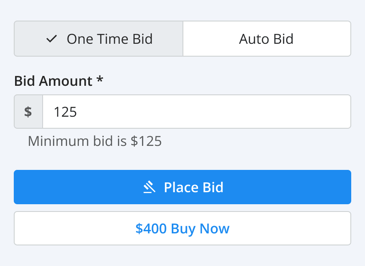
The donor enters their bid amount and clicks "Place Bid."
-
If the donor is not logged in, they will be prompted to log in or create an account.
-
Once logged in, the donor will be asked to save a credit card, if there isn't one already.
-
Their credit card is not charged at this stage. Card will only be charged if they win an item or donate their bid.
-
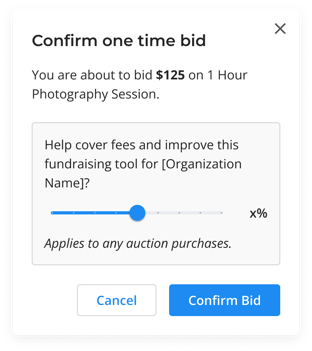
- 0% Fees is enabled, donors will be asked if they would like to help cover transaction fees if they win.
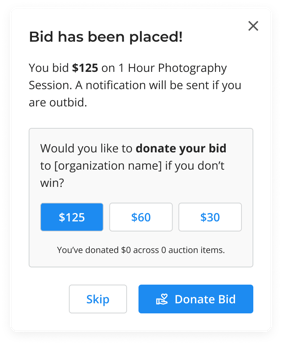
- Once their bid has been placed, if Donate Auction Bid is enabled, donors will be asked if they would like to donate some or all of their bid if they don't win.
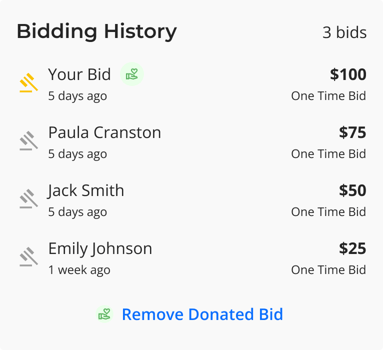
- Once their bid is placed, their bid will appear under bidding history on the item.
Bid Types and Buy Now
There are two different types of bids donors can place.
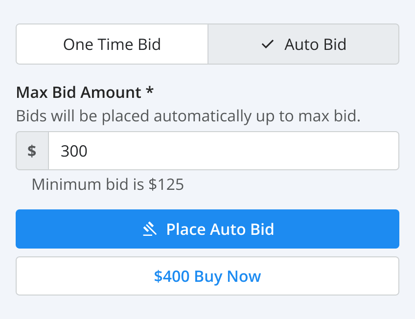
- One Time Bid: Places a single bid at the set bid amount.
- Auto Bid: Donors have the option to set a "Max Bid Amount" The system will automatically bid for them in increments, up to their defined limit, to keep them in the lead.
-
Buy Now: If a Buy Now price is set, the donor has the option to buy the item outright instead of bidding.
"My Bidding History" and Bid Settings
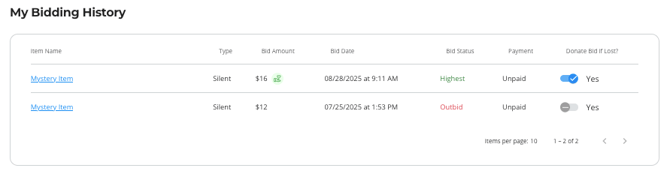
From their account, the donor can view their bidding history, choose to donate their bid if they don't win, or enable the option to bid anonymously.
-
Bid Status "Highest" vs. "Outbid":
-
Green: The donor is currently the highest bidder.
-
Red: The donor has been outbid.
-
- Bidding Anonymously: Donors can choose to bid anonymously and have the system generate a random name that will be displayed when bids are placed. Organizations will be able to see the bidders full name in the Auction Bids section of their Dashboard, the anonymous bidding name is only displayed on the Silent Auction item itself.
- To bid anonymously donors need to enabled this:
- Log into their account
- Click their name in the top right
- Select My Account
- Toggle on "Bid Anonymously"

- To bid anonymously donors need to enabled this:
Bid Notifications
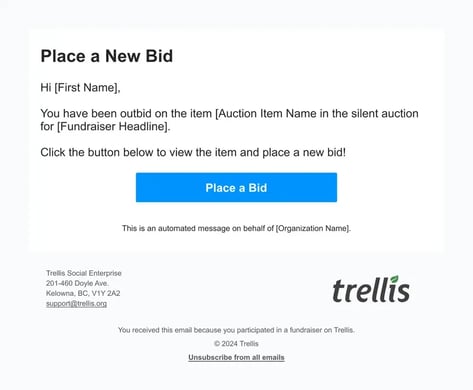
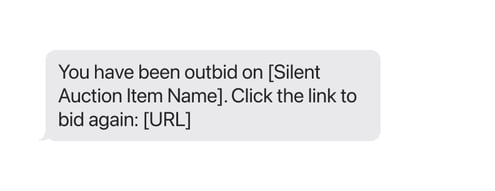
If a donor is outbid, they immediately receive a message with a link to jump back into the auction and increase their bid.
-
- Email Subject: "You have been outbid on [Auction Item Name]"
- Trigger: Sent when the donor is outbid during the auction.
-
Your donors will receive a notification only when they are first outbid. To prevent excessive alerts, they won’t be notified of any further bids on the same item, until they place another bid.
-
Closing the Auction & Checkout
When the auction timer hits zero, the bidding closes and winning cards are charged.
Auction Closed - Won Items, Payment Success
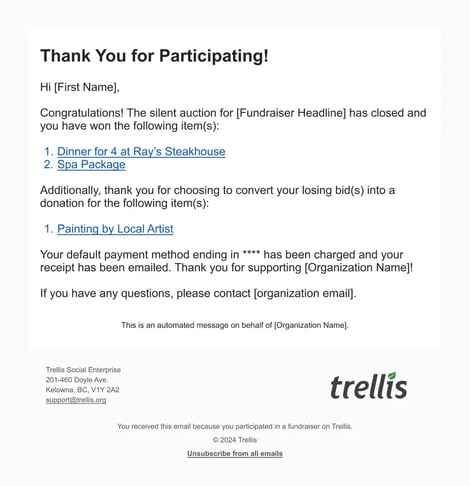
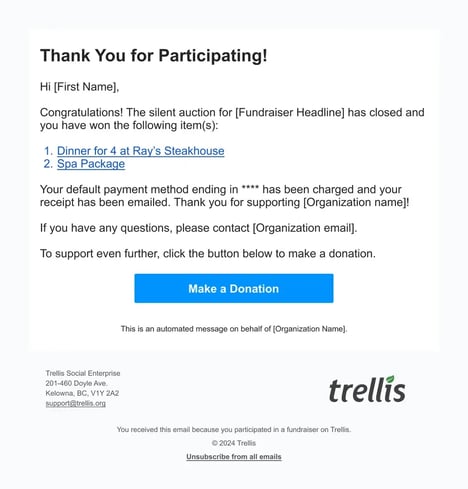
- Email Subject: "You have won silent auction items!"
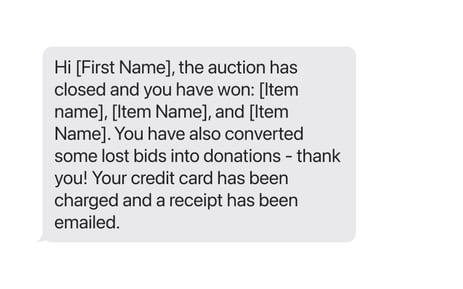
- Trigger: Sent when the donor has won items, and payment is successful.
- Conditions: If the donor also donated their bid, that will appear in this email. If not, the donor will be prompted to donate.
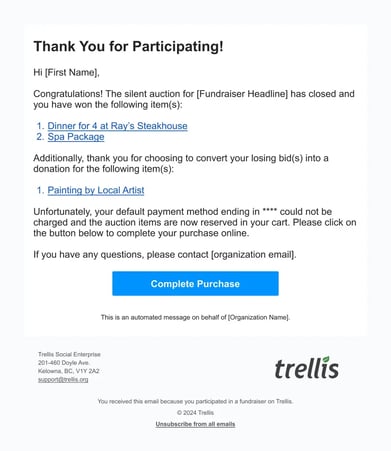
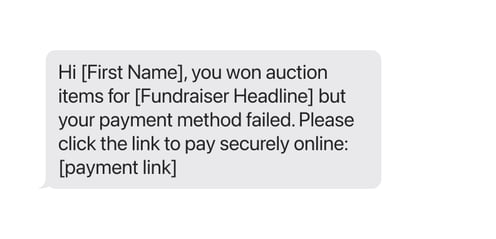
Auction Closed - Won Items, Payment Failed
The item is automatically add to the bidder’s cart and an email and SMS notification is triggered asking them to complete their purchase.
- Email Subject: "You have won silent auction items! Payment is needed"
- Trigger: Sent when the donor has won items, but payment has failed.
- Conditions: If the donor also donated their bid, that will also appear in this email.
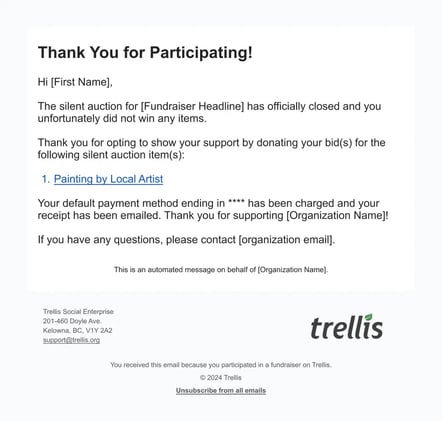
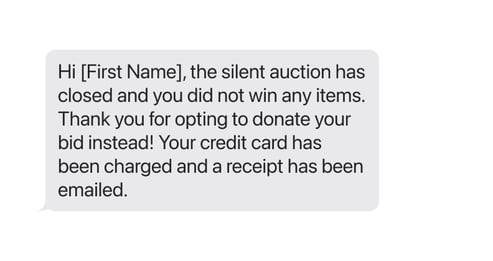
Auction Closed - Donated Bids Only, Payment Success
- Email Subject: "The silent auction has officially closed, thank you for donating!"
- Trigger: Sent when the donor has converted bids into donations, and payment is successful.
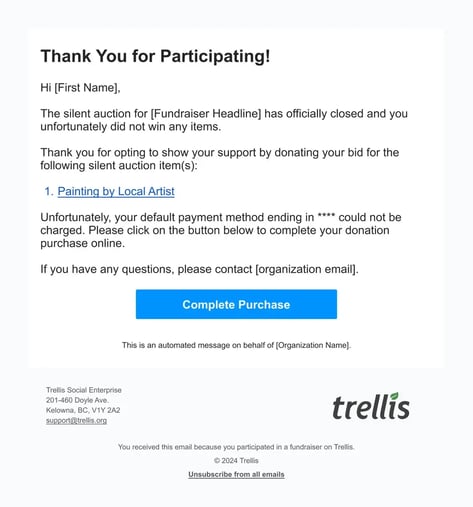
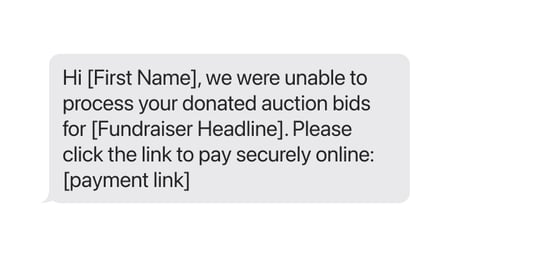
Auction Closed - Donated Bids Only, Payment Failed
- Email Subject: "The silent auction has officially closed, thank you for donating!"
- Trigger: Sent when the donor’s payment for converted bids has failed.
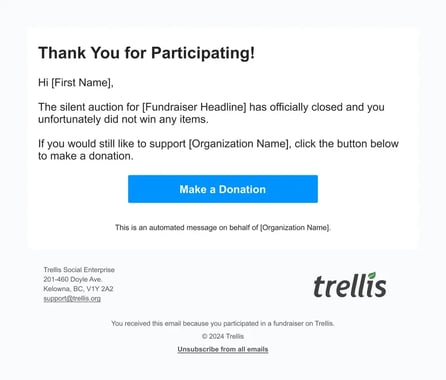
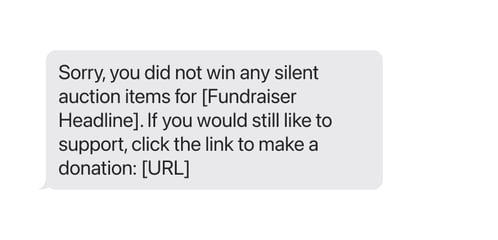
Auction Closed - No Won Items or Donated Bids
- Email Subject: "The silent auction has officially closed, thank you for participating!"
- Trigger: Sent when the donor did not win any items or make donations.
FAQ's
Can donors remove auction items from their cart themselves?
No, donors cannot remove auction items from their cart themselves. If a new winner is to be selected, you must navigate to Results > Auction Bids > Search donor > Award to next highest bidder.