![Trellis-MainLogo-AllWhite-01.png]](https://help.trellis.org/hs-fs/hubfs/Trellis-MainLogo-AllWhite-01.png?height=40&name=Trellis-MainLogo-AllWhite-01.png)
How to Reassign a Ticket
- Navigate to the Check-In Tool from your Dashboard.
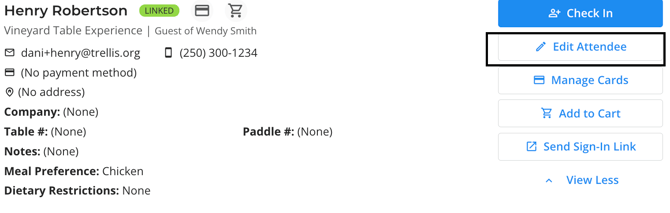
- Search for the attendee whose ticket you need to update.
- Click Edit Attendee.
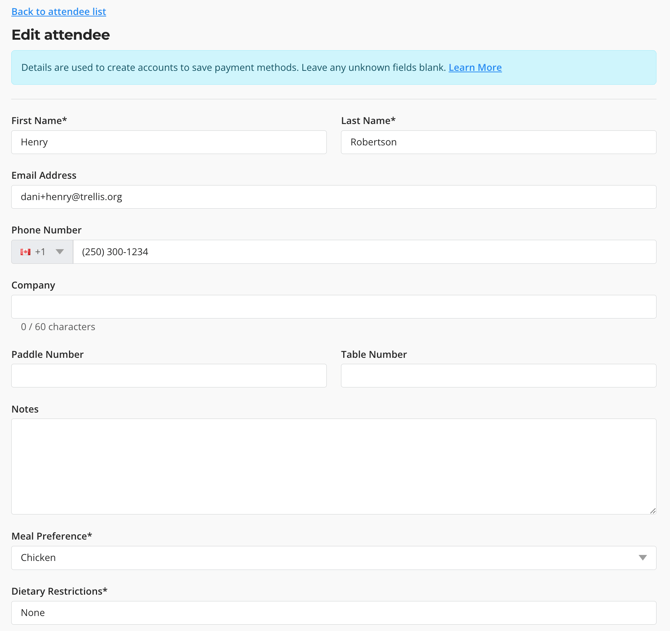
- Update the ticket holder's details with the new attendee's information. If you are unsure of the new attendees email or phone number, please leave that field blank.
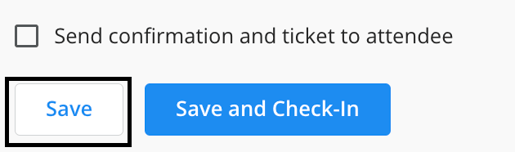
- Click if you'd like the new attendee to receive a confirmation email and ticket.
- Click Save.
Please Note: Ticket holder changes should always be made through the Check-In Tool. Do not edit ticket information from Results > All Transactions — that section is for updating purchaser details only.
Please Note: When reassigning event tickets, always enter the attendee's own information in the attendee fields. Never use another attendee's details or dummy information, even as a placeholder. If you're unsure of an attendee's details, leave the field blank rather than guessing.
Frequently Asked Questions
Will the new ticket holder receive a confirmation email after reassignment?
If you'd like the new attendee to receive a confirmation email, ensure to click "Send confirmation and ticket to attendee" before clicking save.
Can attendees edit their details in their account?
Yes, attendees can edit their information in their account, including their custom field answers.
Related Articles
- How to Add an Attendee Directly to the Check-In Tool
- How to View and Edit a Checkout
- How to Use the Check-In Tool
- How Donor Accounts Work on Trellis
Need Help?
Did this answer your question? If not, please reach out to our Product Engagement Team via the blue chat icon or email support@trellis.org.