![Trellis-MainLogo-AllWhite-01.png]](https://help.trellis.org/hs-fs/hubfs/Trellis-MainLogo-AllWhite-01.png?height=40&name=Trellis-MainLogo-AllWhite-01.png)
Step 1: Prepare Your File
- Navigate to your Dashboard > Results.
- Click on Exports > Select your fundraiser in the top right.
- Click Export on your Attendee Bulk Upload.
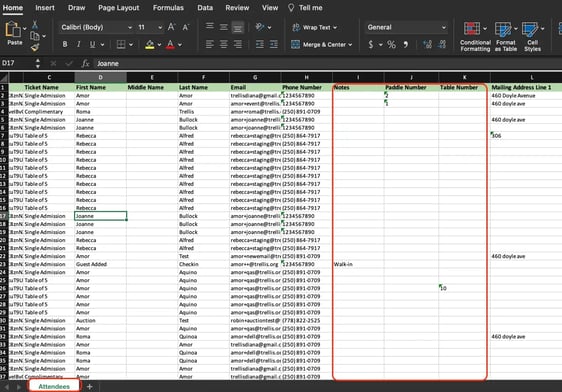
- Navigate to the Attendees tab.
- Add in Table Numbers, Paddle Numbers, and Notes to applicable attendees.
Step 2: Add New Attendees (If Applicable)
-
If you have new attendees to add to your event at the same time, please add them under your current attendees.
- Complete the Mandatory Fields:
- Ticket Name
- First Name
- Last Name
- Complete Optional Fields if applicable:
- Phone Number
- Mailing Address
- Table Number
- Paddle Number
- Notes
- Leave Upload ID and Ticket ID blank, we'll take care of this for you.
Please Note: When submitting a bulk upload, always enter the attendee's own information in the attendee fields. Never use another attendee's details or dummy information, even as a placeholder. If you're unsure of an attendee's details, leave the field blank rather than guessing.
Step 3: Save Your File and Submit Your Bulk Upload Request Form
- When your file is ready, save it as:
Checkin Attendee Bulk Upload <Fundraiser Name>.csv
-
Fill out your Attendee Bulk Upload Request form. The form can be found here.
Please Note: Bulk uploads require two business days turnaround time.
For current attendees, you should not delete or edit the data in any of the other columns (outside of Notes, Paddle Number, Table Number) when providing our team the file for upload, as it would otherwise override or delete that data.
Frequently Asked Questions:
What should we do if we don't know an attendee's contact info?
If any contact information is unknown, please leave these fields blank.
Trellis automatically creates user accounts for attendees when Name and Email are present. If that attendee also has a phone number and mailing address, that info gets saved to their account.
If incorrect info is saved on the account, this can give individuals access to credit cards that should not have access.
For example, if the name and email is for Person A but you put Person B's phone number on that attendee, Person B will get login texts to Person A's account.
How do I download my All Transaction report?
The steps to download your All Transaction report can be found in this article.
Are emails and tickets sent when attendees are bulk uploaded?
No, no emails or event tickets are generated and sent to attendees that are bulk uploaded.
Can I still make changes in the Check-In Tool after the bulk upload is complete?
Yes, you can make changes in the Check-In Tool.
Can couples share a paddle number?
Yes, you can assign a paddle number to both attendees or just one spouse. We recommend if the couple will be sharing a credit card, the spouse with the credit card attached has the paddle number assigned.
What if I don't know all of the paddle or table numbers yet?
We recommend waiting until you have all of the information before sending us the file to ensure data is correct and does not get overwritten.
Are any credit cards charged during bulk uploads?
No, no credit cards are charged for bulk uploads. Offline transactions are created in order to manage attendees.
If you have selected a paid ticket for your attendees, that amount will count towards your thermometer.
Will table numbers or paddle numbers sync into RE NXT?
No, table and paddle numbers do not sync into RE NXT or connect to RE NXT. These will need to be manually added by your team in RE NXT.
Can I send attendees their table numbers?
Yes! This article goes over the steps to send your attendees their table numbers.
Where can I view the table numbers, paddle numbers and notes after my bulk upload is complete?
You can view these in your Check-In Tool and All Transaction report.
What is the turnaround time to complete a bulk upload?
Bulk uploads require two business days turnaround time.
Can ticket types be bulk edited for attendees?
No, ticket types cannot be edited for attendees after they have been created.
Can bulk uploads be reverted?
No, bulk uploads cannot be reverted. Please ensure your upload is finalized when it is sent to us.
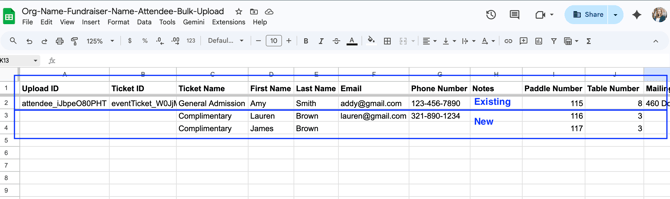
Example Bulk Upload
Row 2 shows an existing attendee that is being bulk edited.
Rows 3 and 4 show attendees that are being bulk added.