![Trellis-MainLogo-AllWhite-01.png]](https://help.trellis.org/hs-fs/hubfs/Trellis-MainLogo-AllWhite-01.png?height=40&name=Trellis-MainLogo-AllWhite-01.png)
When someone purchases tickets, they will automatically receive a copy of all the tickets from their purchase. When a guest is assigned a ticket, they'll also automatically receive an email with a copy of their ticket.
Sometimes a ticket holder loses their ticket, doesn't receive it, or needs a fresh copy before the event. Trellis gives you three ways to send ticket PDFs, depending on whether you're sending to one purchaser, all attendees, or a single attendee at check-in.
Please Note: Event ticket PDFs must be enabled for your event before any of these options will work.
How to Send Tickets to Ticket Holders
Option 1: Resend to the Purchaser
- From your dashboard, navigate to Results > All Transactions.
- Select your fundraiser from the dropdown in the top-right corner.
- Search for the attendee.
- Click the three-dot menu on the right side of their row.
- Select Resend PDF.
- The purchaser will receive all copies of the tickets associated with their purchase.
- The individual ticket holders will not receive any emails.

Option 2: Send Ticket PDFs to All Attendees
- Create a new Message Campaign.
- Select the option to send ticket PDFs to all attendees.
- Send the campaign.
- This article goes over how to create a campaign in further detail.
Option 3: Send to an Individual Attendee via the Check-In Tool
- Open the Check-In Tool.
- Click Edit Attendee on the relevant ticket holder.
- You do not need to make any changes to the attendee.
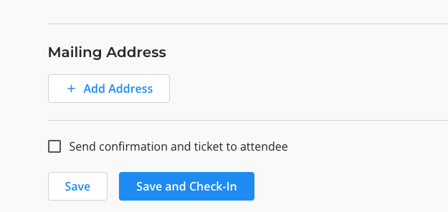
- Scroll to the bottom of the page.
- Check the Send confirmation and ticket to attendee checkbox.
- Click Save to trigger the email.
- This resends the email notifying the attendee they've been assigned a ticket with their event ticket PDF attachment.
Frequently Asked Questions
What does the resent ticket email look like?
The attendee will receive the same confirmation email as the original, with the PDF ticket attached.

If I edit the attendee's info via the Check-In Tool, will the ticket update with the new name?
Yes, the event ticket will be regenerated with the new attendee's name. You can then choose whether you want the new ticket to be sent to the attendee or not. Note that once a ticket is regenerated, the old version can no longer be used to scan a ticket at check-in.
If the purchaser edits their guests' names from their side, do they receive new copies of their tickets?
If the purchaser reassigns the ticket to a new attendee, they will not receive a copy of the new ticket. If the new attendee has an email address assigned, that attendee will receive a copy of their ticket.
Related Articles
- How to Enable Event Ticket PDFs
- How to Use the Check-In Tool
- How to Manage Ticket Holders and Assignments
- Creating a Messaging Campaign
Need Help?
Did this answer your question? If not, please reach out to our Product Engagement Team via the blue chat icon or email support@trellis.org.