![Trellis-MainLogo-AllWhite-01.png]](https://help.trellis.org/hs-fs/hubfs/Trellis-MainLogo-AllWhite-01.png?height=40&name=Trellis-MainLogo-AllWhite-01.png)
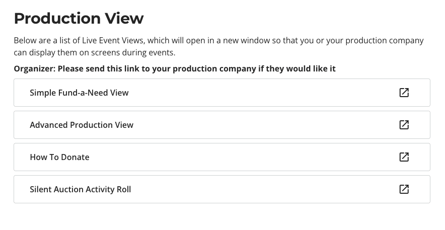
There are four different Live Event views that are available on Trellis:
- Simple Fund-a-Need View:
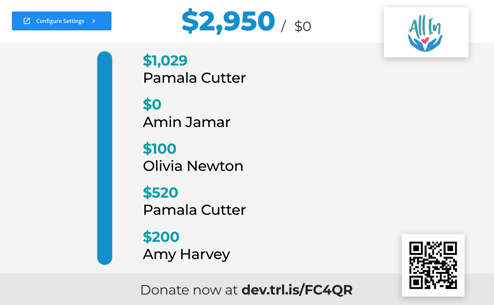
- Used during Fund-a-Needs / Paddle Raises to show donors and total raised.
- Advanced Production View:
- Can be used by AV teams to build their own view using screen capturing. It includes the donor roll, thermometer, and total raised.
- How to Donate:
- Shows instructions for how to donate, including a QR code for donors to scan. It leads to your donations page (not your Fund-a-Need flow)
- Silent Auction Activity Roll:
- Shows silent auction bids as they are placed throughout the night, including the bidder name and bid amount.
Configuring and Generating a View
-
Go to your Dashboard > Fundraiser Builder.
-
Click Live Event Views.
-
Select the specific View you would like to generate.
-
Copy and Share the URL to the device connected to your event screens.
How to Generate a Simple Fund-A-Need View
Please Note:
The Simple Fund-a-Need view works best when you are accepting donations via donor mobile devices, not with paddles.
- From the fundraiser builder, go to the sidebar and choose Live Event Views
- It will open up a new browser tab to show your different production views. Select Simple Fund-a-Need View
-
Click Configure Settings in the top left corner of your Simple Fund-a-Need View builder
-
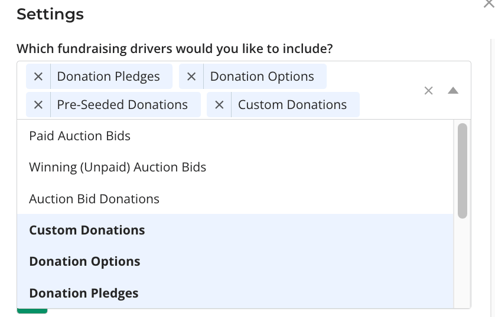
Under "Which fundraising drivers would you like to include?" ensure you select custom donations, donation options, pre-seeded donations, and donation pledges.
- Complete your settings with your Thermometer Goal and Appearance
- To set a background image, you must first host the image online (such as on your website) then copy the URL to that image into the settings.
- Click Generate Production View
- Once you click Generate Production View, a new browser tab will open. Be sure to copy the entire URL from this tab and use it for projecting the display
Important:
- Unlike the rest of Trellis, Live Event view configurations can only be seen by the person setting it up. We recommend that one single Organization Manager be responsible for generating and managing the view to avoid URL confusion.
-
Once a Simple Fund-A-Need View has been generated, it cannot be edited. If you need to change the goal or appearance, you must generate a new view and use the new URL.
How to Ask Donors to Participate Using Mobile Devices
- First, ensure you set up your Fund-a-Need giving levels in your fundraiser builder, under Donations > Fund-a-Needs. Learn More
- Project your Fund-a-Need view on the screen or where your donors can easily see it
- Ask donors to scan the QR code or type the short URL into their browser on their own devices
- After accessing the page, donors will be able to view the Giving Levels. They can easily pledge or make a donation even if they are not logged in.
- As donations and pledges are made, you'll see your thermometer updated in real time.
Frequently Asked Questions
Q: Is the Fund-a-Need flow accessible via a menu item or navigation on the fundraiser page?
A: No, the Fund-a-Need flow is only accessible if you share the link directly with your supporters, either by sending them the URL, creating QR codes, or by using the Simple Fund-a-Need view. This allows you to control who has access and when, rather than allowing anyone on the internet to access the flow.
Q: Do these views continuously scroll?
These views do not continuously scroll. Instead, they update automatically to show the most recent transaction (donation, bid, etc.) as it happens.
Q: What if we are doing a physical paddle raise?
A: If you are asking donors to raise paddles instead of participate on their mobile devices, you should have volunteer spotters that are recording donations on paper around the room. After the Fund-a-Need, you can enter the donations into Trellis using our FAN Quick Entry Tool.
Q: Can we remove fees from the Simple Fund-a-Need View?
A: Unfortunately not at this time.
Q: Can we remove the thermometer or goal?
A: Unfortunately not at this time. We recommend using the Advanced Production View which allows your AV Team to screen grab different components.
Need help?
Did this answer your question? If not, please reach out to our Product Engagement Team via the blue chat icon or email support@trellis.org.