![Trellis-MainLogo-AllWhite-01.png]](https://help.trellis.org/hs-fs/hubfs/Trellis-MainLogo-AllWhite-01.png?height=40&name=Trellis-MainLogo-AllWhite-01.png)
Accessing the Fundraiser Builder
- From your Dashboard, find the event you want to edit.
- Click Edit on that fundraiser to open the Builder.
Once inside the Builder, you can update the page's sections, sidebar settings, and status using the tools described below.
The Status Bar
Located at the top of your screen, the Status Bar manages your page's visibility and surfaces any errors.
- Page Status — View and update your URL, or pause and archive the page.
- Preview — View your fundraiser as a draft in desktop or mobile mode.
- View Live Page — Opens the current public version of your page.
- Publish Changes — Applies your edits to the live site.

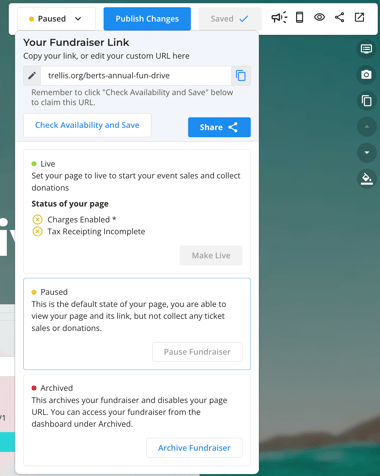
Note: Your changes are not visible to the public until you click Publish Changes.
The Event Information Card
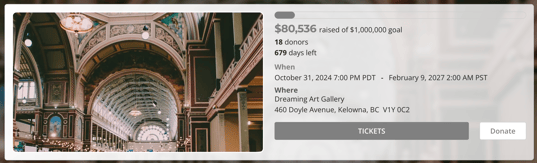
The Event Information Card appears at the top of your fundraiser page and displays key details like date, time, and location. It also links donors directly to donations and event ticket purchases.
Building Your Page with Sections
Sections are the building blocks of your fundraiser page. Use the following tools to customize them:
- Add a Section — Click the blue + button to add new content.
- Edit Text — Highlight any text on the page to open the formatting menu, where you can adjust font size, color, and more.
- Rearrange — Duplicate or drag and drop sections to improve the flow of your page.
- Customize — Click any section to change background colors and branding.
Pro Tip: Use high-quality images to break up text, add a dedicated sponsor section to encourage partnerships, and use text sections to explain the story behind your cause.
Sidebar Settings
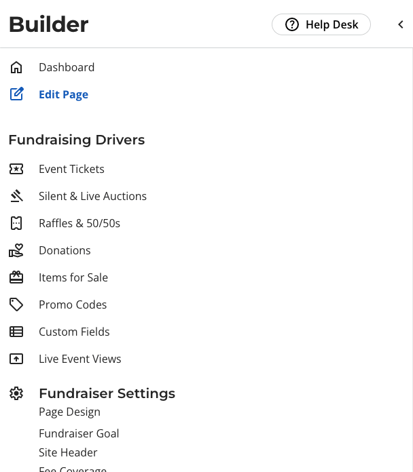
The sidebar gives you access to settings and fundraising drivers for your page, including:
- Appearance — Adjust layout and visual settings.
- Social Sharing — Customize how your page looks when shared on social media.
- Checkout Options — Ensure your team is BCC'd on all new checkouts.
Best Practices for Success
-
Visual Appeal: Use high-quality images to break up text and grab attention.
-
Tell a Story: Use text sections to explain the "Why" behind your cause.
-
Highlight Sponsors: Add a specific section for sponsors to showcase and encourage partnerships.
Frequently Asked Questions
Can I add a leaderboard or activity feed to my fundraiser page?
Yes. Click the blue + button to add a new section and select Fundraiser Activity. This adds a section with a thermometer, total raised, goal amount, and recent checkout totals. You can customize it to show specific drivers and toggle the thermometer and totals on or off.
Can two users edit the fundraiser page at the same time?
No, two users should not edit the fundraiser page at the same time. The page is not a live editor, and so changes can be overwritten if two or more users publish their changes.
Is there a way to undo or revert changes?
No, not at this time. Changes made to the builder are automatically saved, and once published, can no longer be reverted. It is also not possible to restore previous versions of your fundraiser.
Can we set up a template that is used each time we create a new fundraiser?
While Trellis does not have a native template feature, you can set up a fundraiser page as a template, title it "fundraiser template" and duplicate it each time you need to set up a new fundraiser.
For more on duplicating a fundraiser, check out this article.
Can we see when changes have been made that have not been published?
Trellis currently does not track unpublished changes, and therefore cannot alert you to when the fundraiser needs publishing. We recommend regularly publishing your fundraiser, as well as publishing each time you exit the builder. The builder will automatically remind you to publish changes when you exit.
Related Articles
- Learn About the Sidebar Settings
- How to Set Up Your Event Tickets
- How to Add Items for Sale on Trellis
Need Help?
Did this answer your question? If not, please reach out to our Product Engagement Team via the blue chat icon or email support@trellis.org.