![Trellis-MainLogo-AllWhite-01.png]](https://help.trellis.org/hs-fs/hubfs/Trellis-MainLogo-AllWhite-01.png?height=40&name=Trellis-MainLogo-AllWhite-01.png)
How Payouts Work
Payouts are processed weekly, tyically every Monday. If Monday falls on a holiday, the payout is delayed to the next business day.
All transactions go through a 7-day clearing period before they're included in a payout. This means a transaction will typically reach your bank account about two weeks after the original purchase.
Here's a simple example of how the timeline works:
- Transactions completed between the 1st–7th → included in the payout triggered on the 14th (Example below is the blue line)
- Transactions completed between the 8th–14th → included in the payout triggered on the 21st (Example below is the green line)
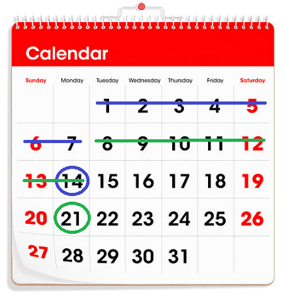
Once a payout is triggered, the time it takes to appear in your bank account depends on your bank. If you haven't received a deposit after two business days, we recommend contacting your bank directly.
Pro Tip: You can preview the amount included in your next payout at any time by going to Dashboard > Payments > Stripe Connect.

How to Download Your Payout Report
- Log in to your Trellis account and navigate to your Dashboard.
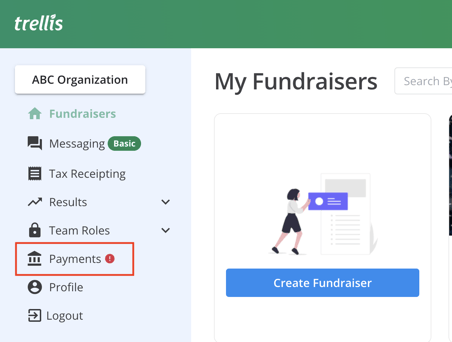
- Click Payments in the left side panel.
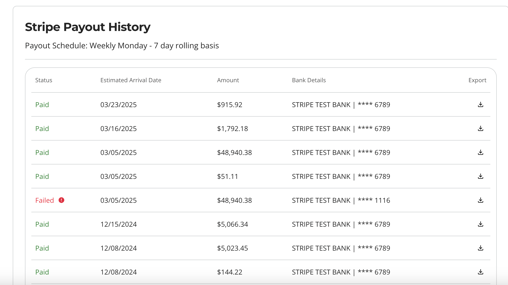
- Under Payout History, review the dates and details of all payouts to your bank account.
- Click the Download icon on the right side of the payout you want to export.
- Select your preferred file format, choose your timezone, and enter your email address.
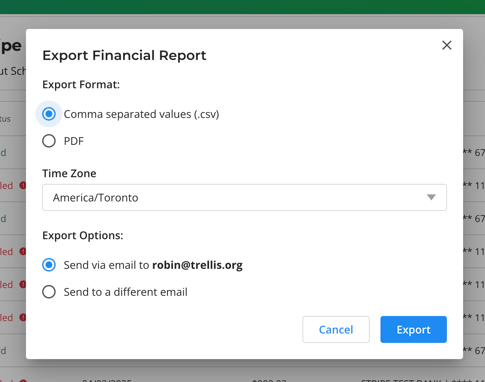
- Click Send. Your report will be delivered to your inbox.
The Payout Report includes a detailed breakdown of every transaction included in that payout.
Pro Tip: Once a payout is completed, the All Transactions report will display the corresponding Payout ID alongside each transaction, making reconciliation straightforward.
Frequently Asked Questions
Why haven't we received our payout?
A: If your organization hasn't received any payouts, ensure that your banking information has been entered correctly. If you look under your Payout History, you will be able to see if any payouts have failed and why.
If you have a failed payout, we will also send you an email notification.
We have transactions missing from our payout, what happened?
A: If you have transactions missing from your payout, please first confirm that those transactions were processed via Stripe. The payout report does not include offline transactions that you've entered into Trellis, such as cash, cheque, card - offline, or other payments.
If you have confirmed it's a Stripe payment it is possible it falls just past the clearing cutoff date and will be included in next week's payout. If you still haven't received it in the next payout, please reach out to support@trellis.org.
A payout failed due to incorrect bank account details. We updated our bank account, when will we receive the outstanding funds?
A: The next time a payout is triggered (the following Monday) it will include all funds available to pay out, including those that failed to pay out the previous Monday. Updating your bank account will not trigger an automatic payout process.
We are running a raffle in Canada with a separate bank account for raffle proceeds. Will the system automatically payout raffle proceeds to the correct account?
A: Yes, so long as it is set up correctly. You will need two bank accounts: one default bank account for fundraiser proceeds, and one bank account designated for raffles.
When you fill out the raffle intake form, you must specify which bank account should be used for raffle proceeds. Once a raffle is live and published, you can no longer make changes to this bank account.
When a payout is triggered on Monday, any raffle proceeds will go to the raffle bank account, and all other proceeds will go to the default bank account, even if the purchase included a raffle ticket and donation within the same checkout.
Related Articles
Need Help?
Did this answer your question? If not, please reach out to our Product Engagement Team via the blue chat icon or email support@trellis.org.