![Trellis-MainLogo-AllWhite-01.png]](https://help.trellis.org/hs-fs/hubfs/Trellis-MainLogo-AllWhite-01.png?height=40&name=Trellis-MainLogo-AllWhite-01.png)
How to Set Up the Simple Fund-a-Need View
- From your Builder, open the sidebar and select Live Event Views.
- In the new tab that opens, select Simple Fund-a-Need View.
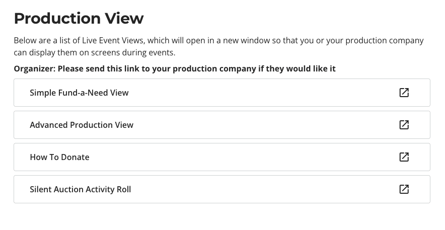
- Click Configure Settings in the top-left corner.
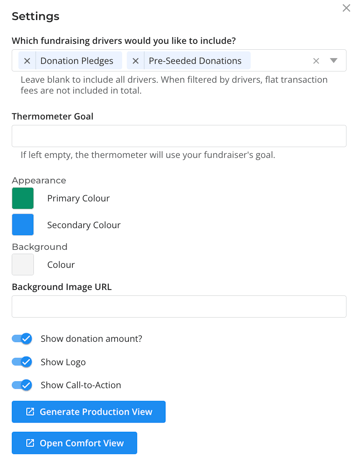
- Select which fundraising drivers you would like to include. We recommend Donation Pledges and Pre-Seeded Donations.
- Set your Thermometer Goal and Appearance preferences.
- If you'd like donors to be able to make donations from their mobile devices, ensure Show Call-to-Action toggle is on.
- Click Generate Production View.
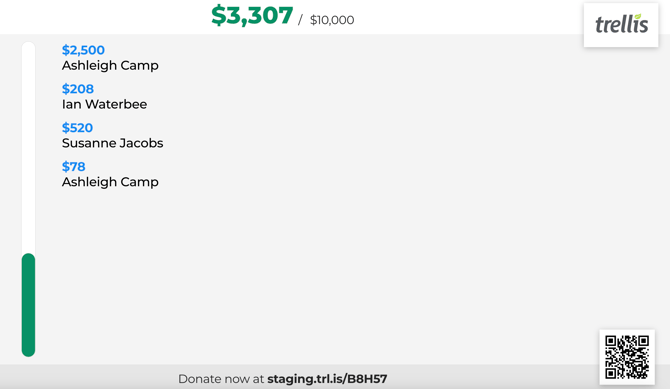
- Copy the full URL from the new tab that opens and use it on the device connected to your event screens.
Pro Tip:
To set a background image, host the image online first (such as on your website), then paste the image URL into the appearance settings.
Heads Up! Once a view is generated, it cannot be edited. If you need to update your goal or appearance, generate a new view — this will create a new URL. Have one Organization Manager generate and manage the view to avoid URL confusion, as Live Event View configurations are only visible to the person who created them.
Frequently Asked Questions
Can the view be edited after it's generated?
No. If you need to make changes, you must generate a new view, which will produce a new URL.
Does the activity roll scroll?
No. The view updates automatically to show the most recent transaction as it comes in, but it does not continuously scroll through past activity.
Can we remove the thermometer or fees from the view?
Neither can be removed from the Fund-a-Need View at this time. If your AV team needs more flexibility, the Advanced Production View allows them to screen capture individual components separately.
Related Articles
- How to Set Up Your Fund-a-Need
- How Donors Can Participate in Your Fund-a-Need Using Mobile Devices
- How to Use the Fund-a-Need Quick Entry Tool
- How to Manage Your Pledges After an Event
Need Help?
Did this answer your question? If not, please reach out to our Product Engagement Team via the blue chat icon or email support@trellis.org.