![Trellis-MainLogo-AllWhite-01.png]](https://help.trellis.org/hs-fs/hubfs/Trellis-MainLogo-AllWhite-01.png?height=40&name=Trellis-MainLogo-AllWhite-01.png)
How to Log In
With a One-Time Login Link
If you've been invited to join your organization's Trellis account, you will receive a welcome email that contains a one-time login link.
- Check your inbox for a welcome email.
- Click the one-time login link in the email.
- You'll be taken directly into your Dashboard.
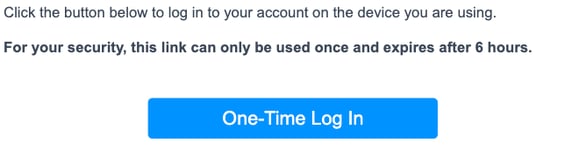
Login links expire 6 hours after being sent, you can request a new link be sent by clicking resend link.
With an Email and Password
- Go to app.trellis.org/login.
- Enter your email address and password.
- Click Log In.
Sign in with Google
If your email domain is hosted on Google, you can login without entering a password.
- Go to app.trellis.org/login.
- Click Sign in with Google.
- Select or confirm your Google account.
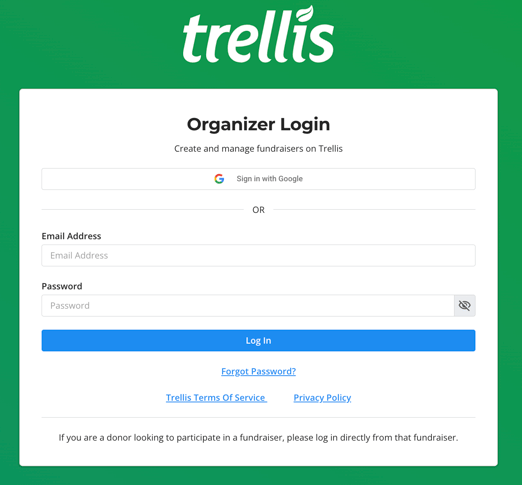
Forgot your password? Click Forgot Password, enter your email address, and you'll receive an email with a link to reset your password.
Please Note: You can no longer create organizations from the login page. If you're new to Trellis and need an account set up, email support@trellis.org.
Troubleshooting Common Issues
"No account found"
This message means Trellis couldn't find an account matching your email and password. Check the following:
-
Typos in your email address or password
-
Using the wrong email (try both your personal and general org emails, like
info@orname@) -
Your account may not be linked to any organization — contact your org manager for access
-
You may be a donor trying to log into the organizer dashboard — donors should log in directly from the fundraiser page
"An unexpected error occurred, please try again"
-
Refresh the page
-
Clear your browser cookies and cache
-
On a PC press Crtl + Shift + R at the same time
-
On a Mac press CMD + Shift + R at the same time
-
-
Try a different browser if necessary
Did this answer your question? If not, please feel free to reach out to support@trellis.org.